Podbag Training · Open a web server in the browser
by The podbag team · 
 @SteelCrabon in TrainingPermalink
A web server listens on a port inside its container. Publishing a port gives your browser an address on your computer. In this module, the address is restricted to this computer.
Time 10 minutes
Beginner course
Run your first container → Open a web server in the browser → Keep files across containers → Replace and clean up a web service
Install the module
Download web-basics.podbag. In Desktop, select Install module at the top of Training. Choose the downloaded file and confirm.
podbag lab install web-basics.podbag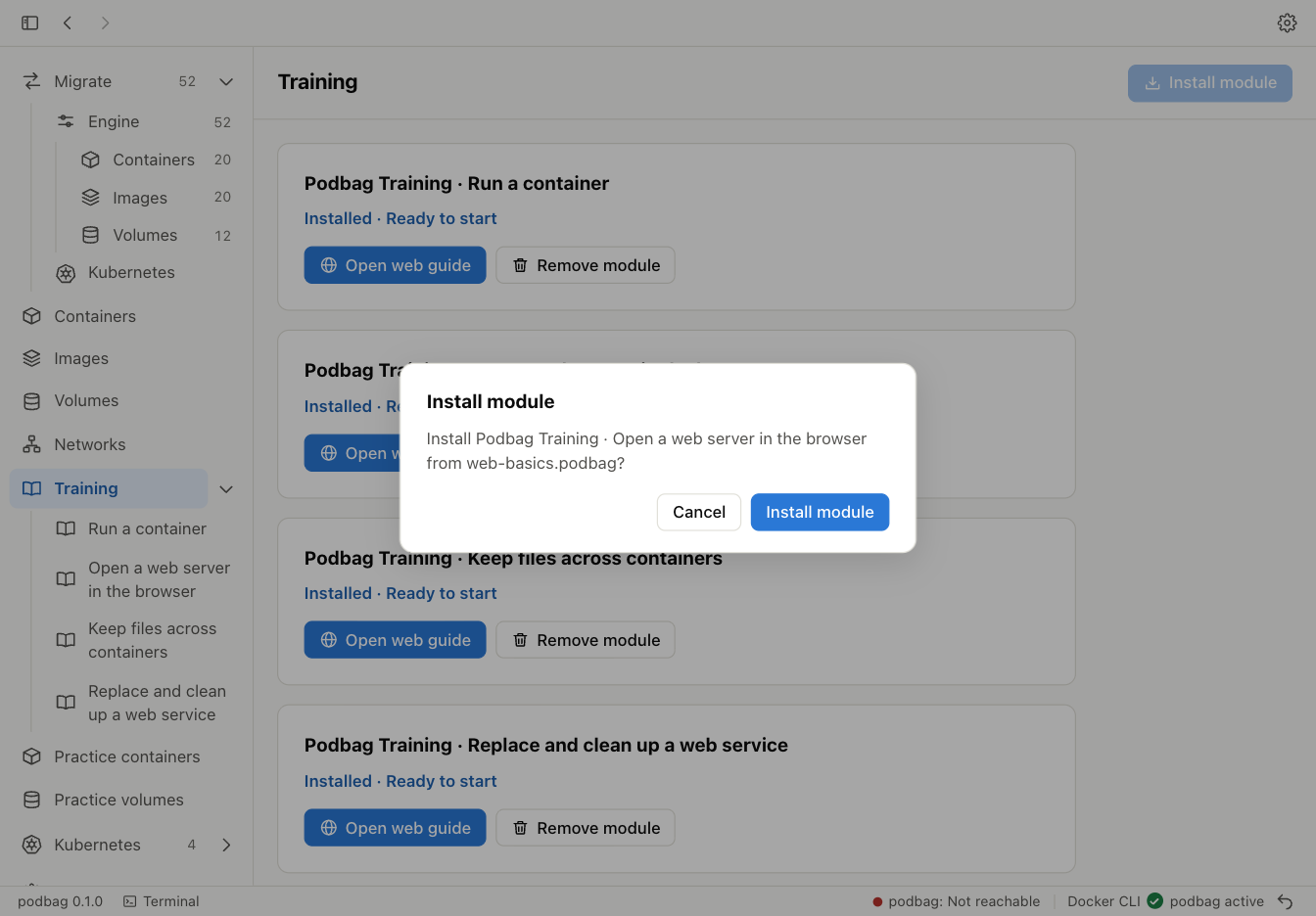
Start the practice session
Expand Training in the sidebar and select the module. Copy the start command into your terminal. Continue when it shows the training $ prompt.
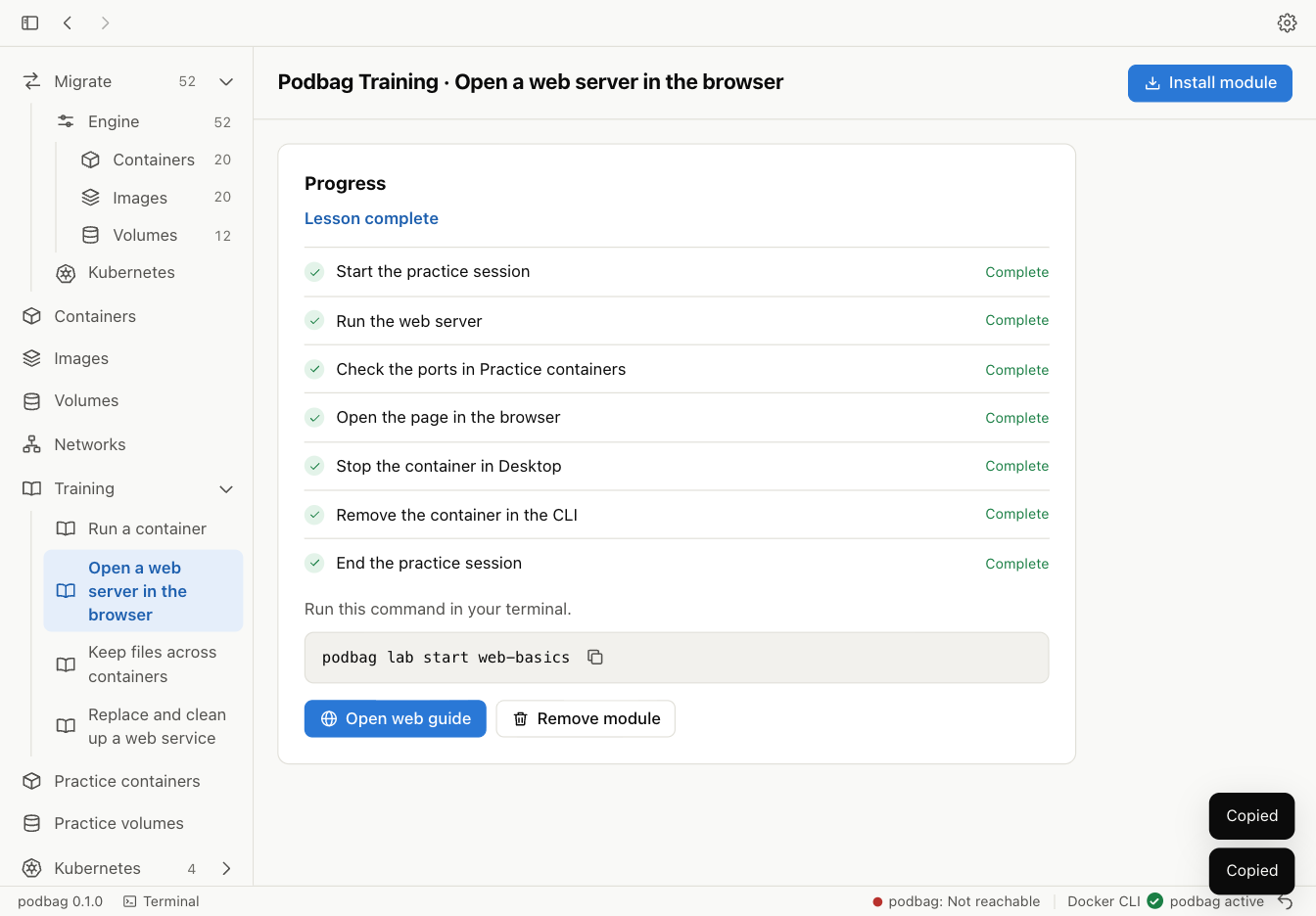
podbag lab start web-basics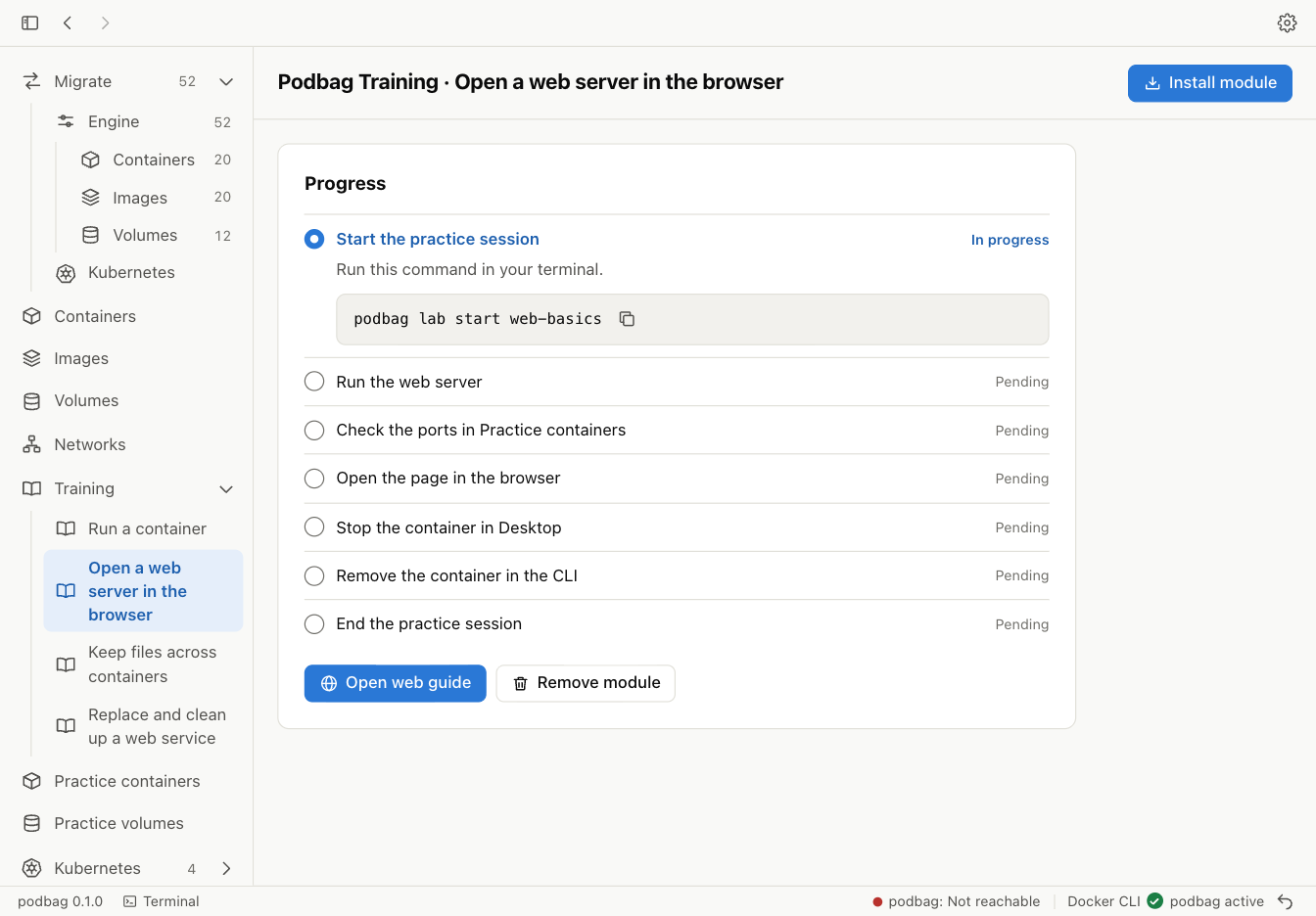
If the default port is already in use, use the port in Training. The command and browser address show the same port.
Run the web server
Copy the command from the current step. It runs BusyBox and serves the file /www/index.html. The first run downloads the image.
podbag run -d --name lab-web -p 127.0.0.1:18080:8080 docker.io/library/busybox:1.37.0 sh -c 'mkdir -p /www && printf "%s\n" "Podbag Training" > /www/index.html && exec httpd -f -p 8080 -h /www'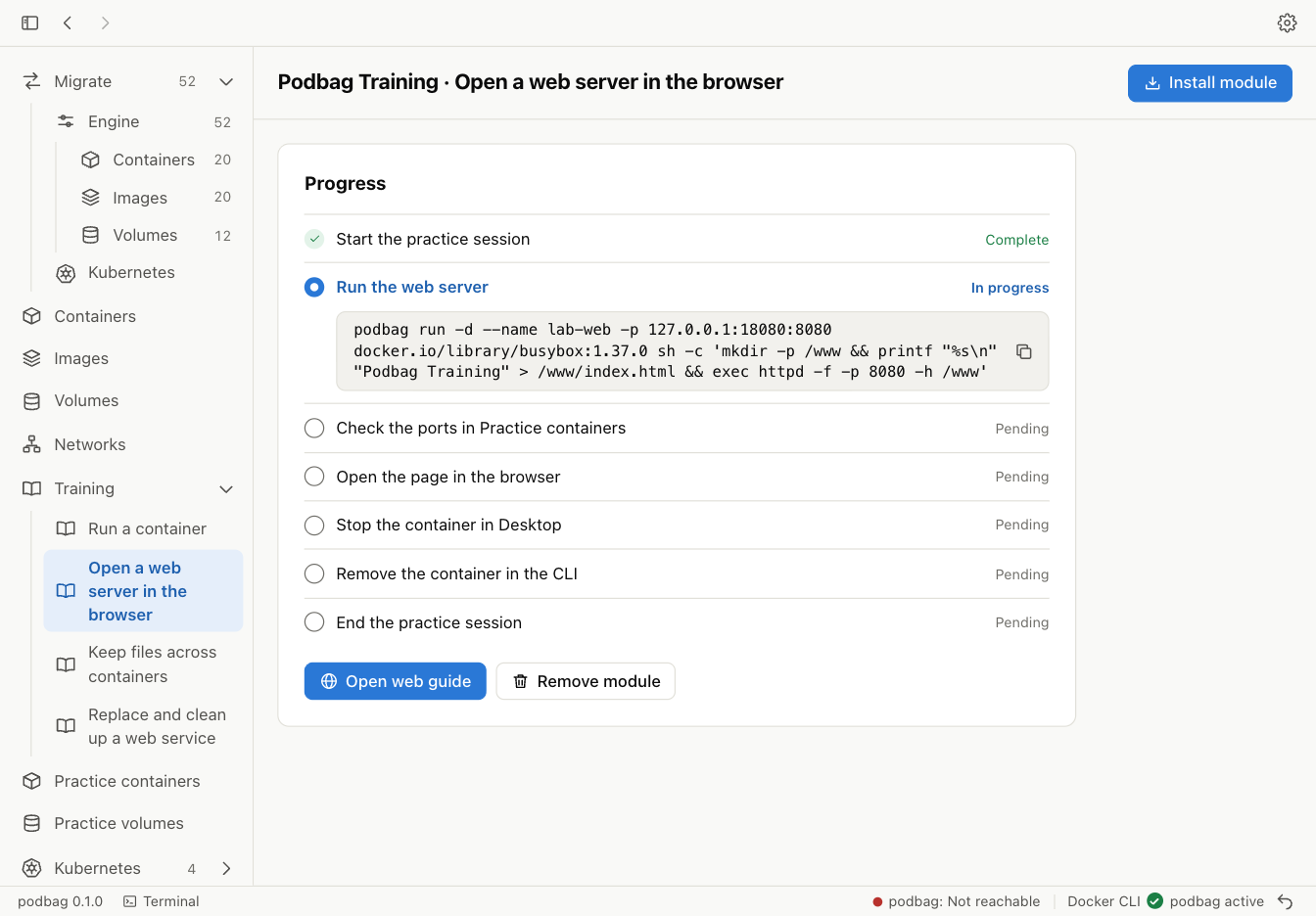
Check the port mapping in Desktop
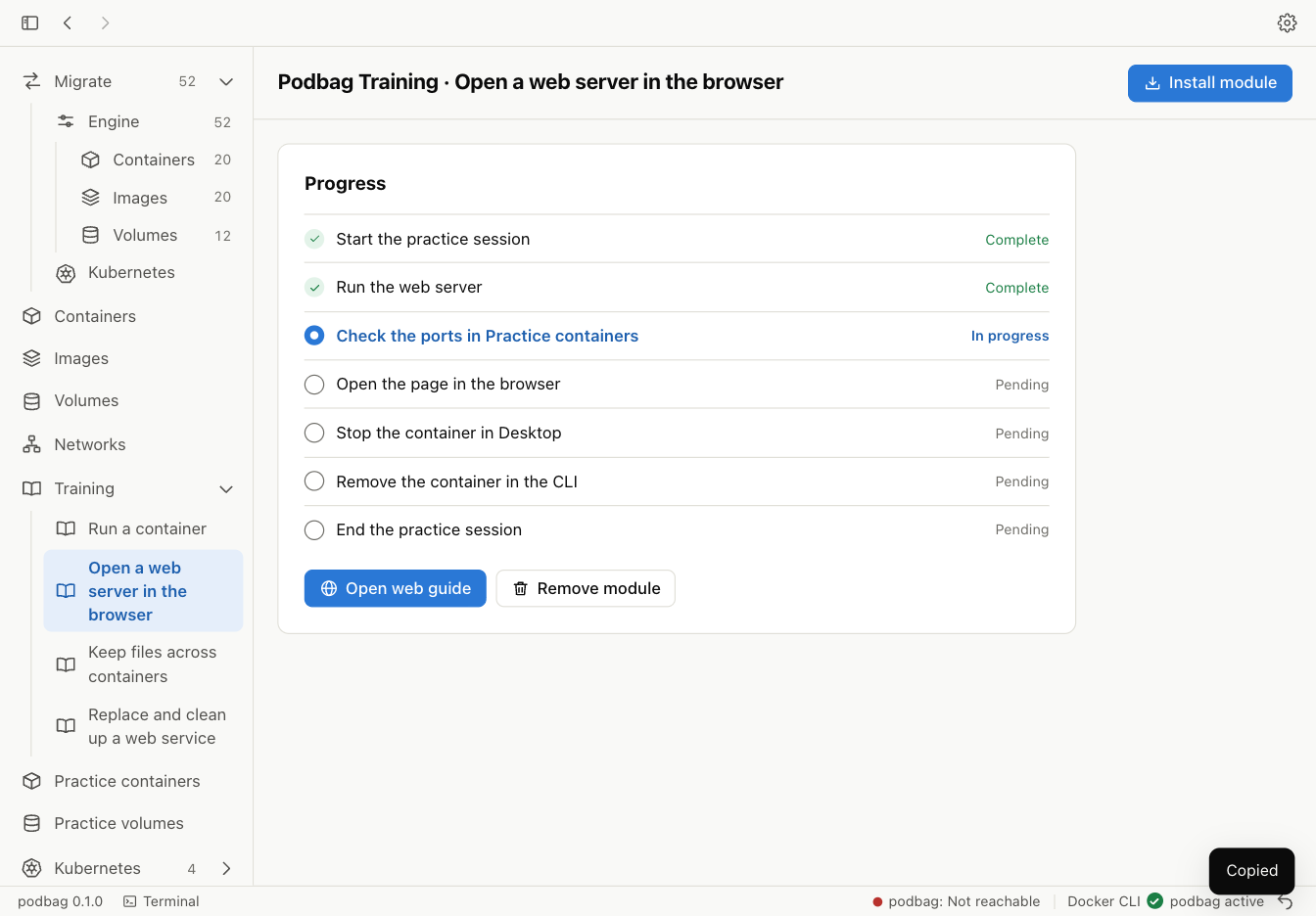
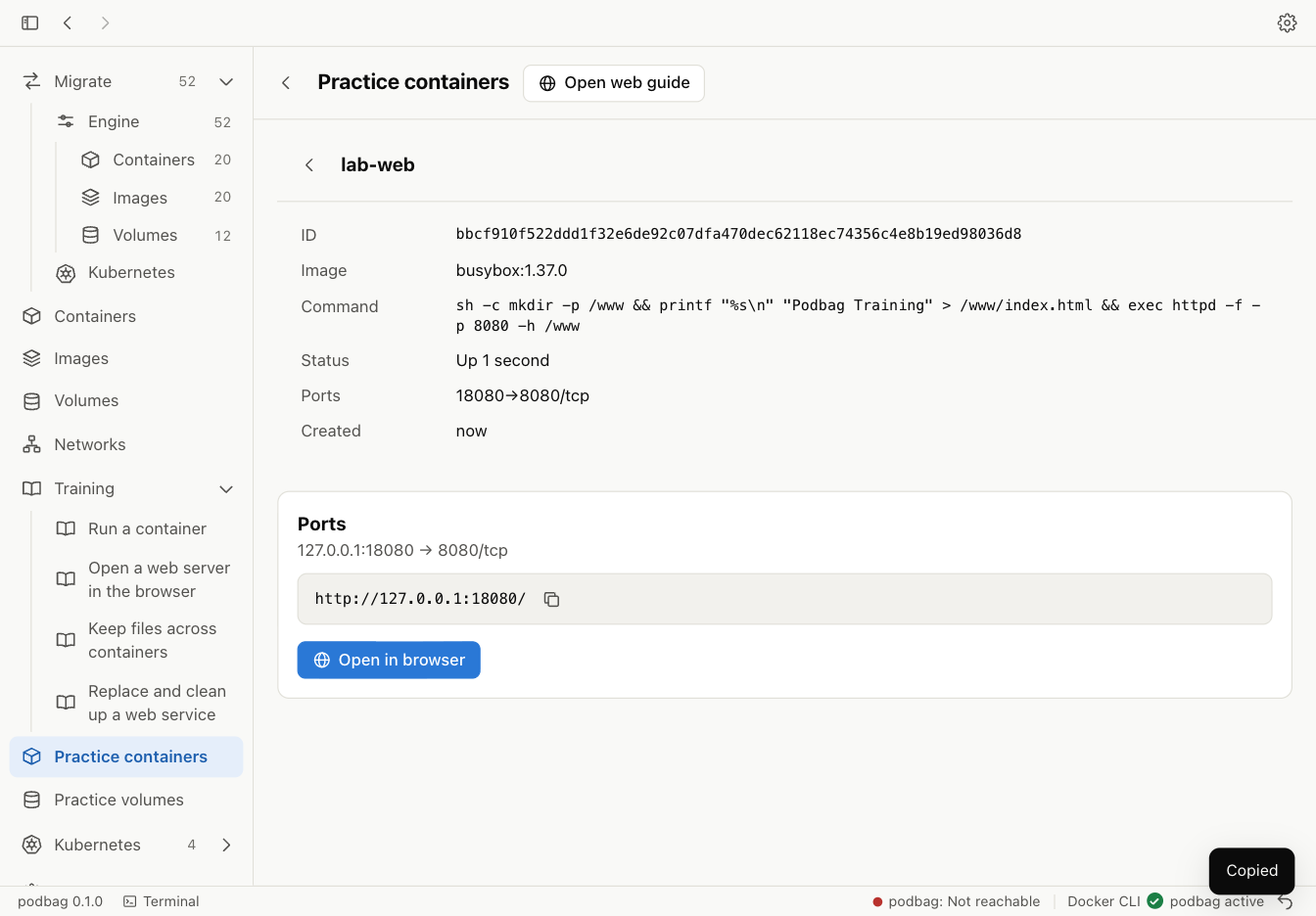
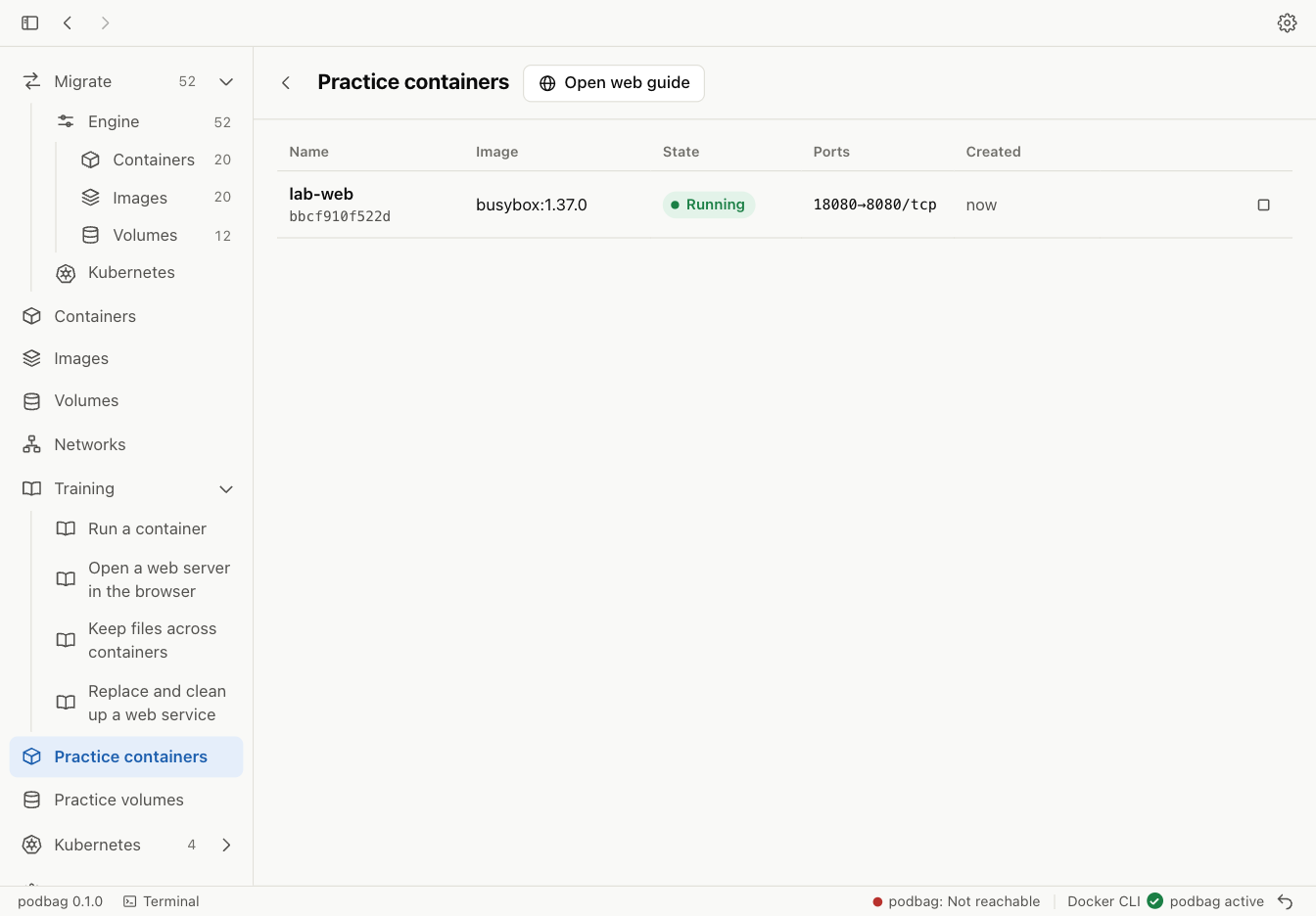
Open Practice containers → lab-web → View ports. The default mapping is 127.0.0.1:18080 → 8080/tcp. The first port belongs to your computer. The second belongs to the container.
Open the page in the browser
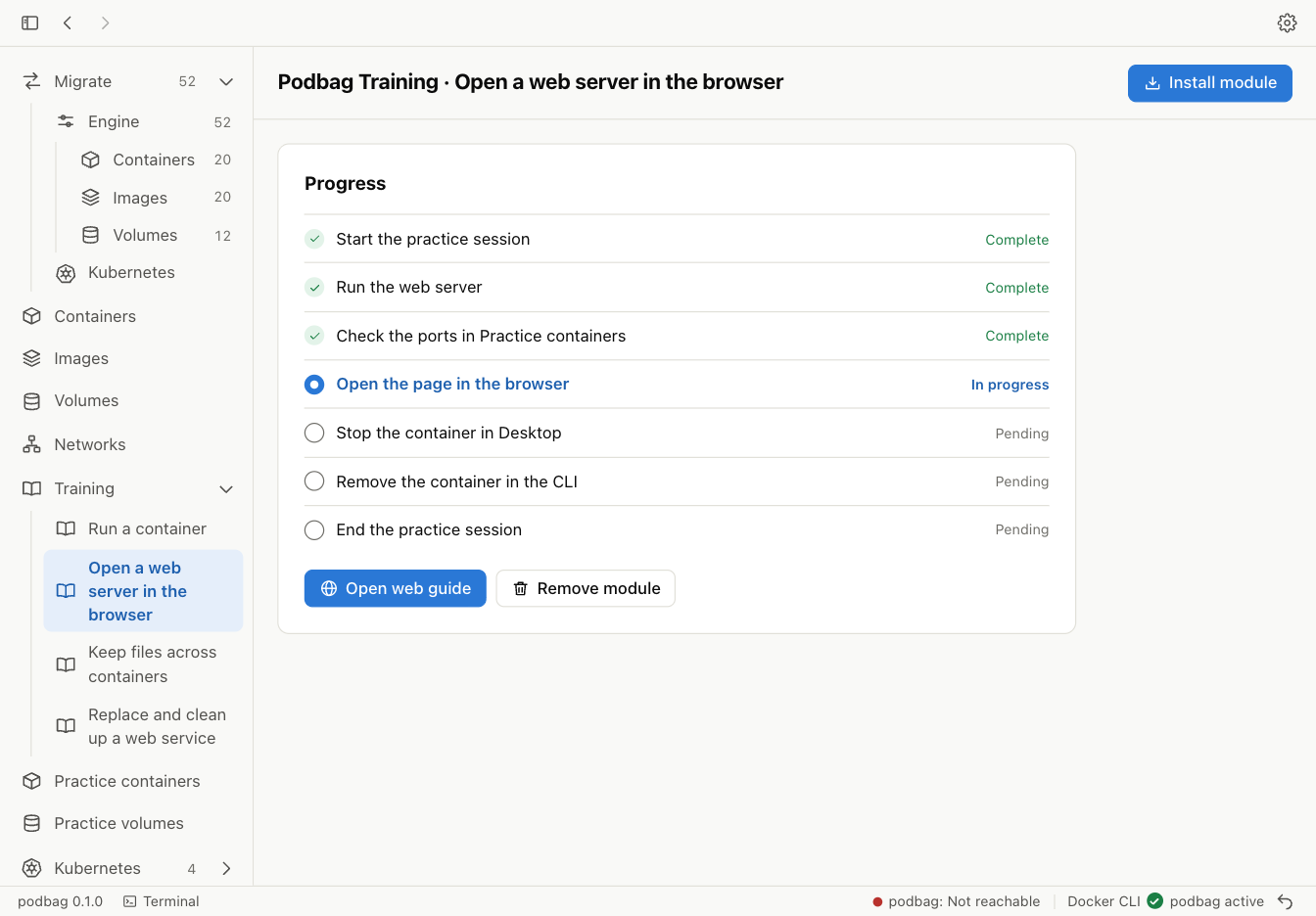
Select Open in browser. The page shows Podbag Training. Desktop checks that the local address returns HTTP 200 and the expected text.

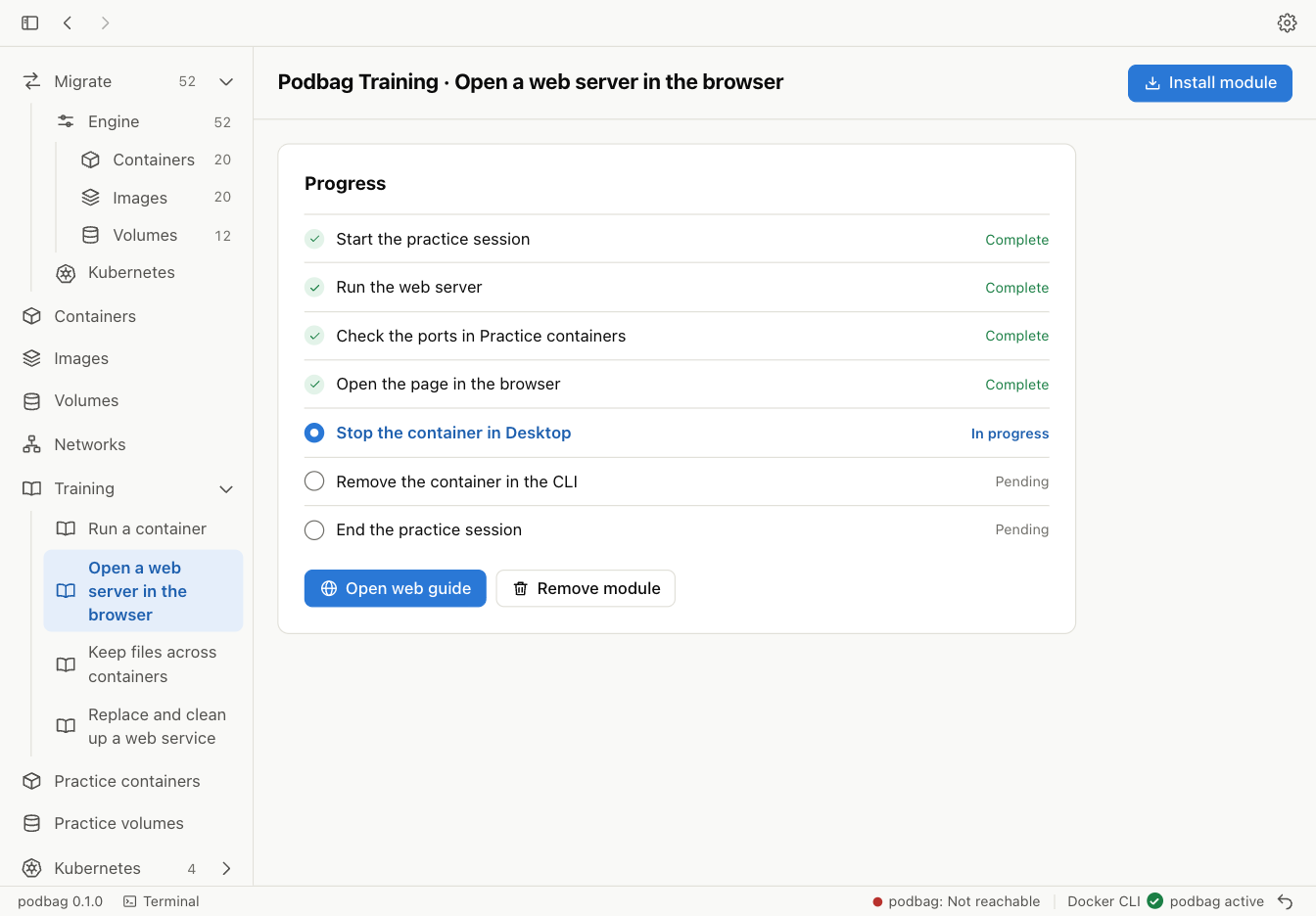
Stop the server in Desktop
Return to Practice containers. Find lab-web and select Stop in its row.
Remove the stopped container
Run the removal command in the same terminal. The next step appears when lab-web is gone.
podbag rm lab-web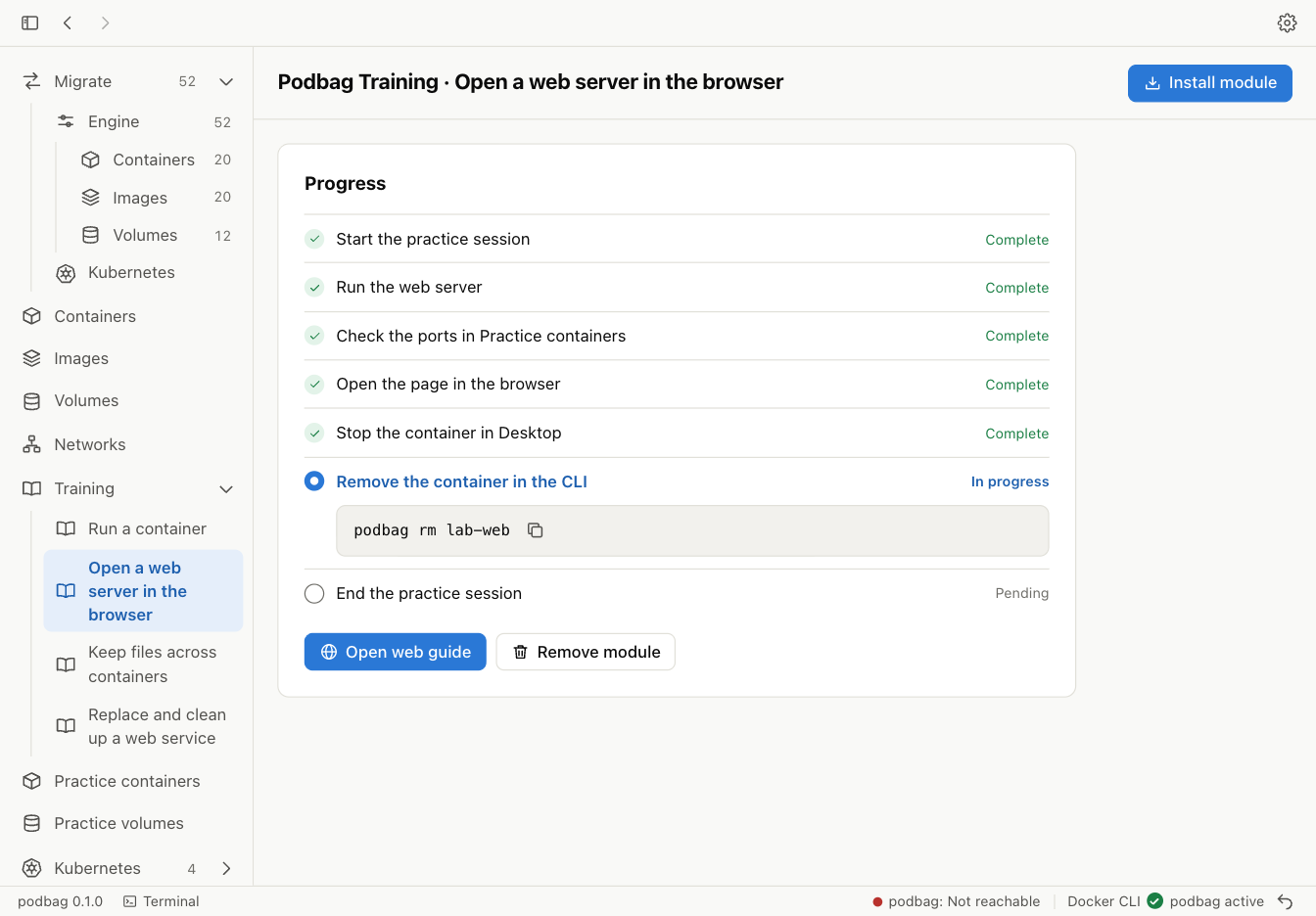
Finish the practice session
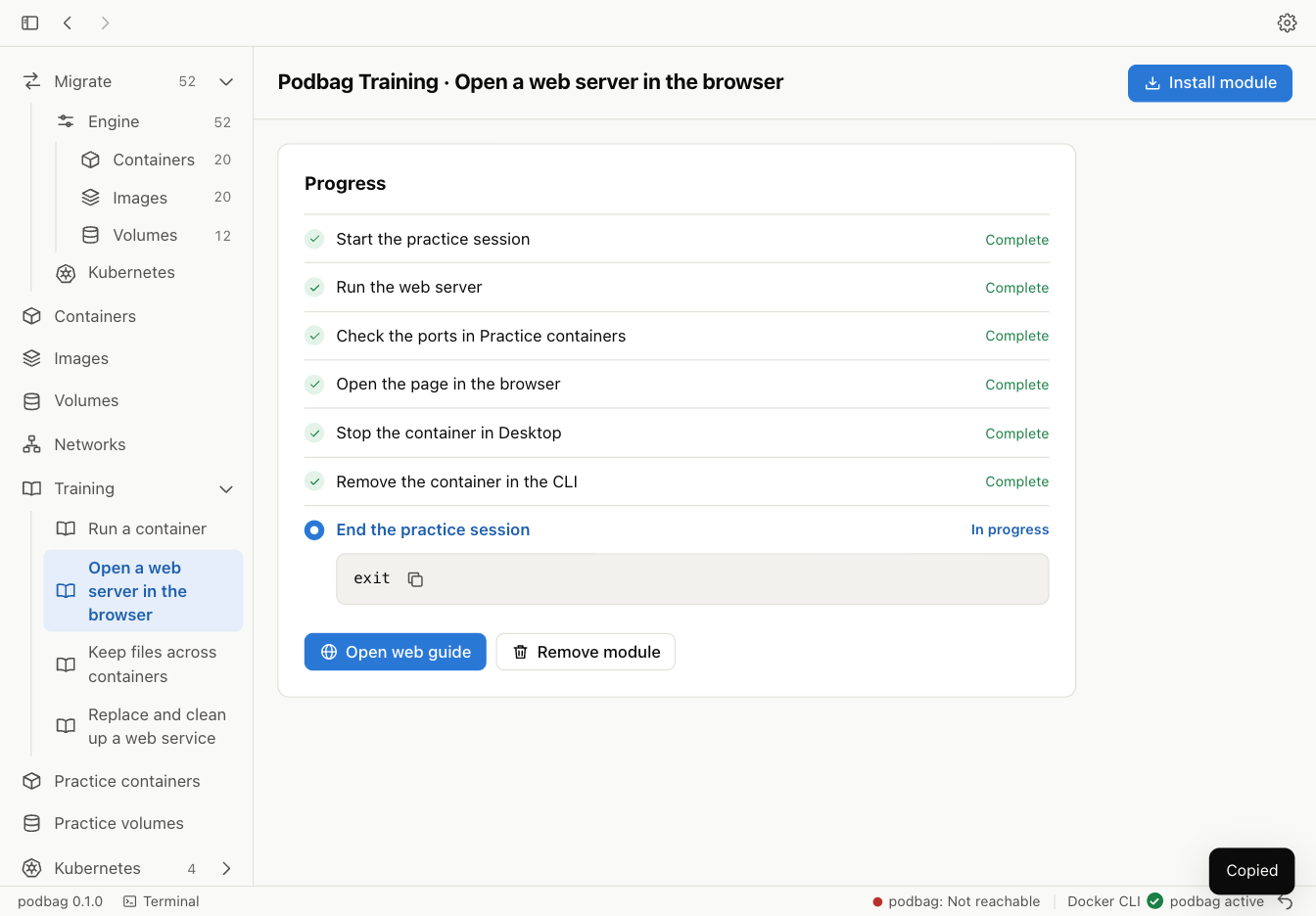
Run the command shown in the final step. Training records completion after the practice environment has been removed.
exit