Podbag Training · Run your first container
by The podbag team · 
 @SteelCrabon in TrainingPermalink
An image contains the files a program needs. A container runs the program from that image. In this lab, you run a small web server called hello-web and stop it with Podbag Desktop.
Beginner course
Run your first container → Open a web server in the browser → Keep files across containers → Replace and clean up a web service
Install the training module
Download container-basics.podbag. Open a training-compatible build of Podbag Desktop. In Training, select Install module at the top, choose the downloaded file, and confirm. You can also install it from your download folder.
podbag lab install container-basics.podbag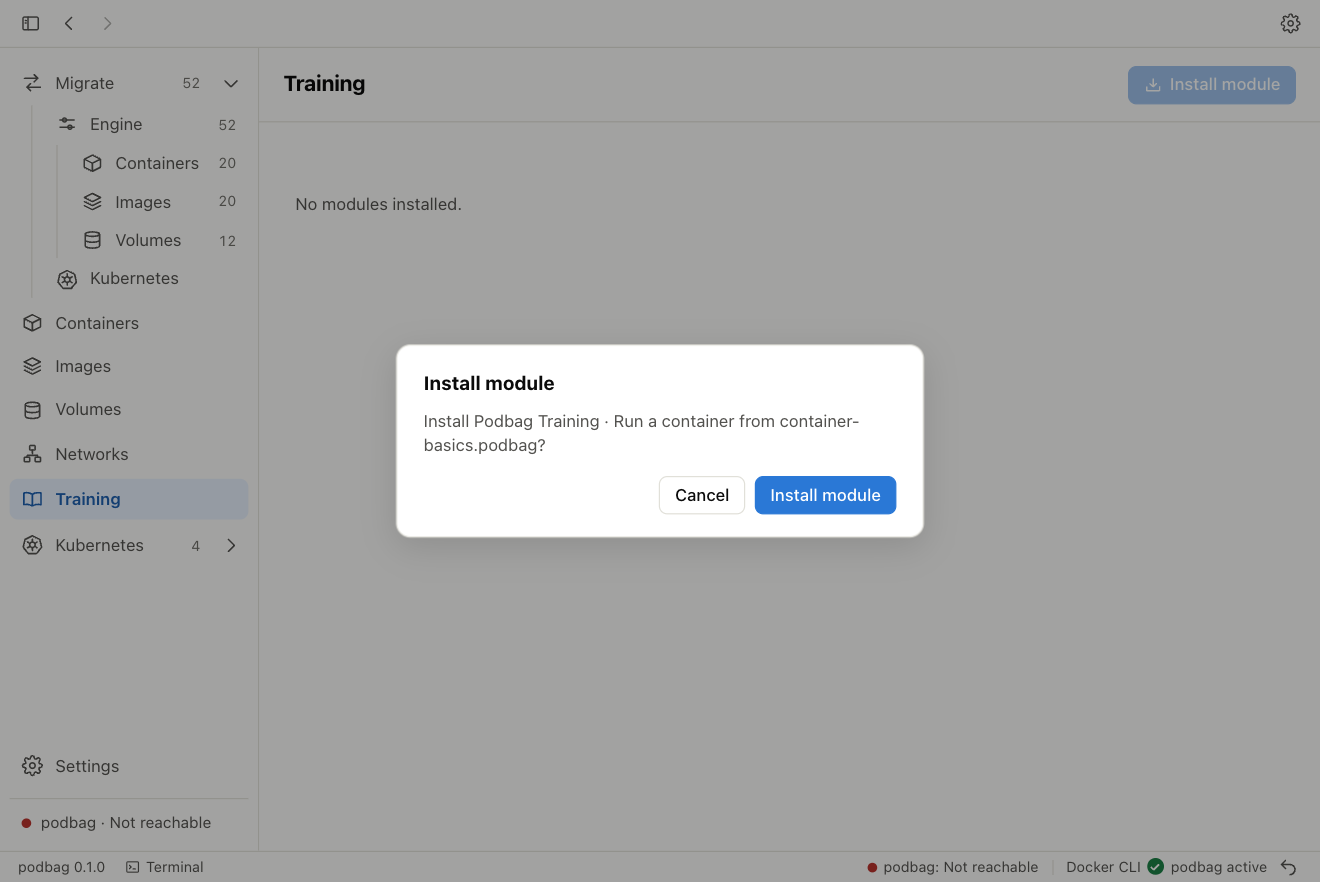
If you already installed this training module, install the new file over it to keep your completion record. Run podbag lab list to see your installed modules.
Start the practice session
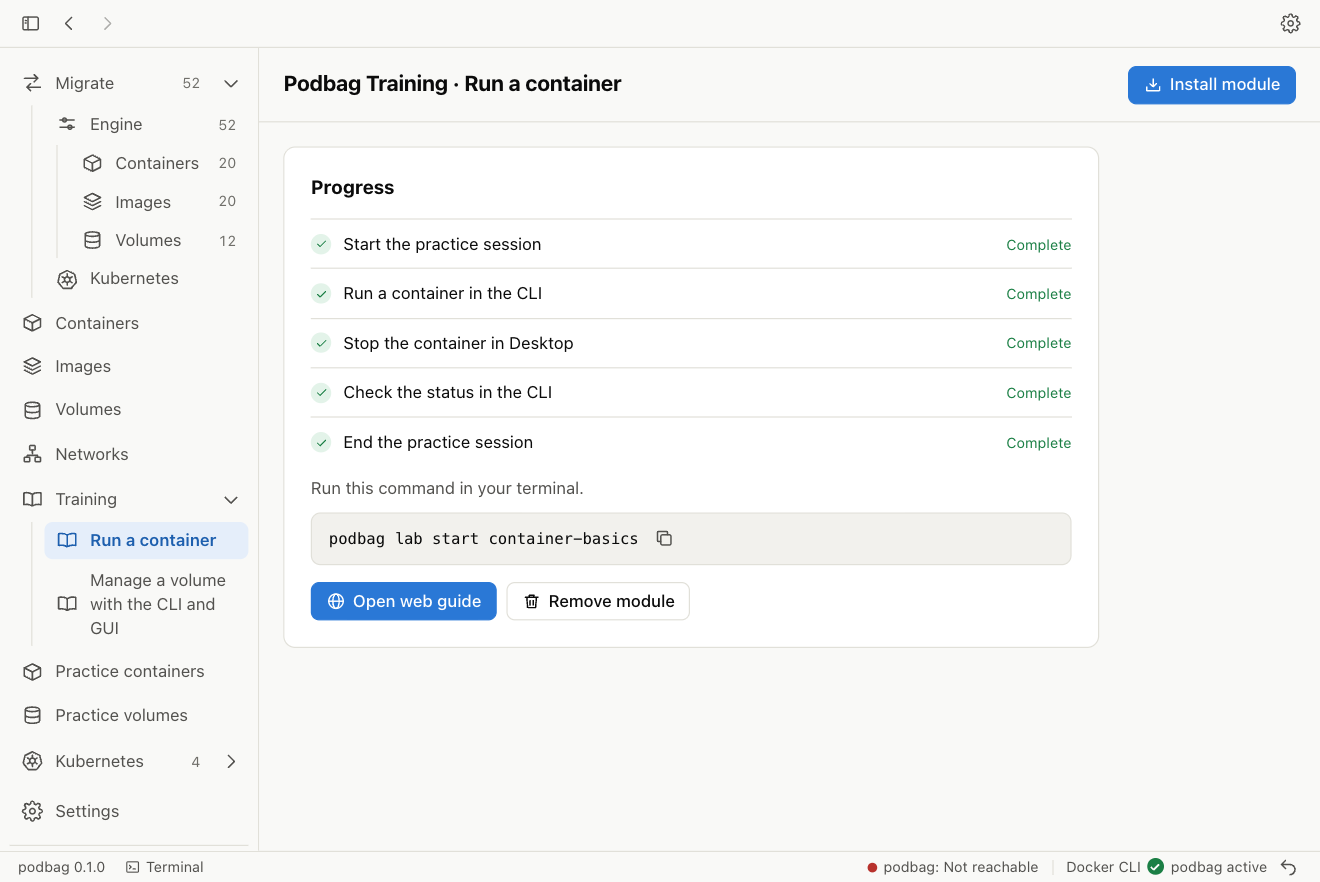
In the sidebar, expand Training and select Run a container. The module shows the current step and the steps that follow. Copy the command below and run it in your terminal. Continue when it shows container-lab $.
podbag lab start container-basics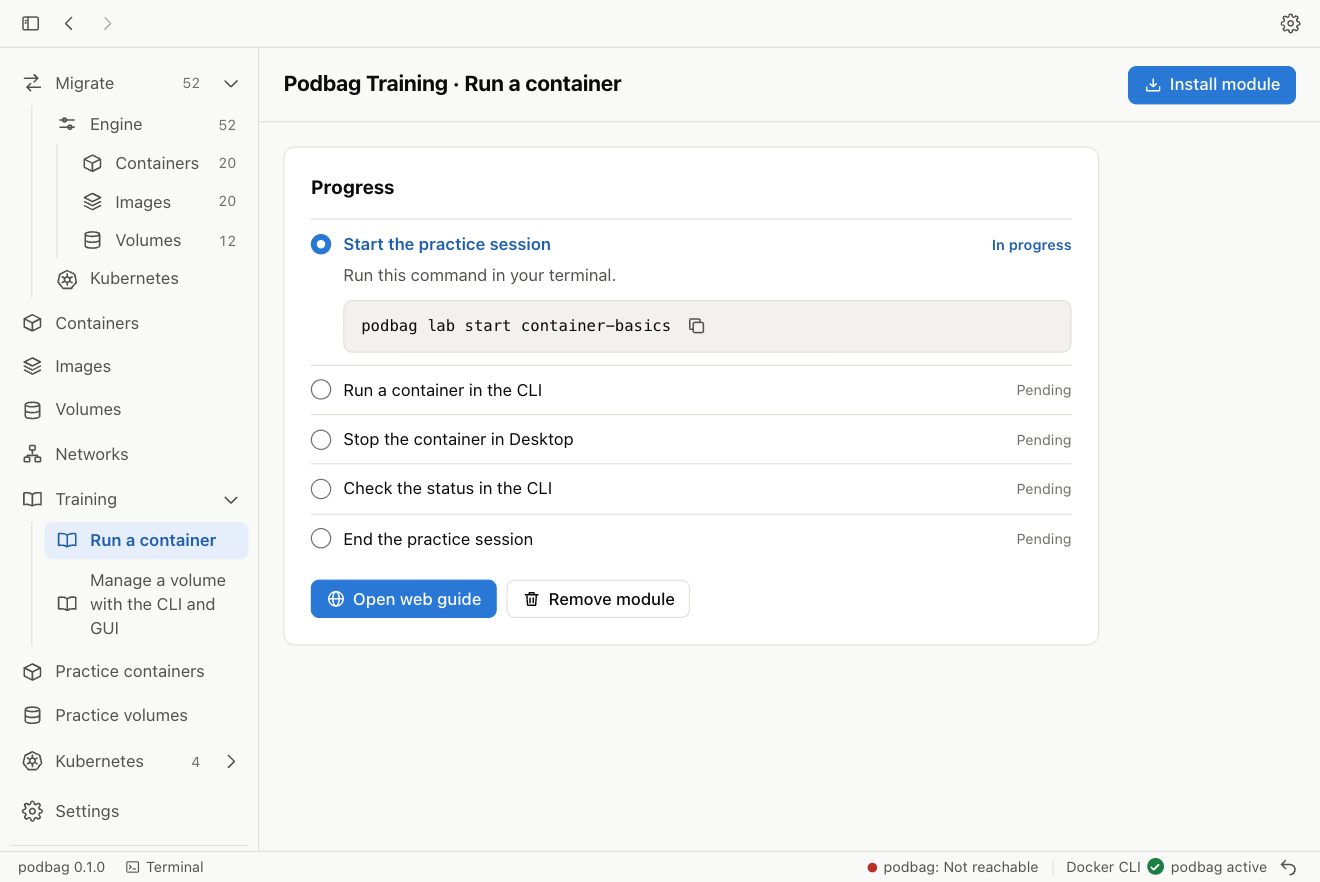
Run the web server in the CLI
Enter the command below in the practice terminal. Podbag downloads the practice image on the first run.
podbag run -d --name hello-web --network none docker.io/library/busybox:1.37.0 httpd -f -p 8080-d runs the container in the background. --name hello-web gives it a name. The server listens on port 8080 inside the container. This lab focuses on the container's lifecycle, so the command leaves the server isolated from the host network.

Stop the container in Desktop
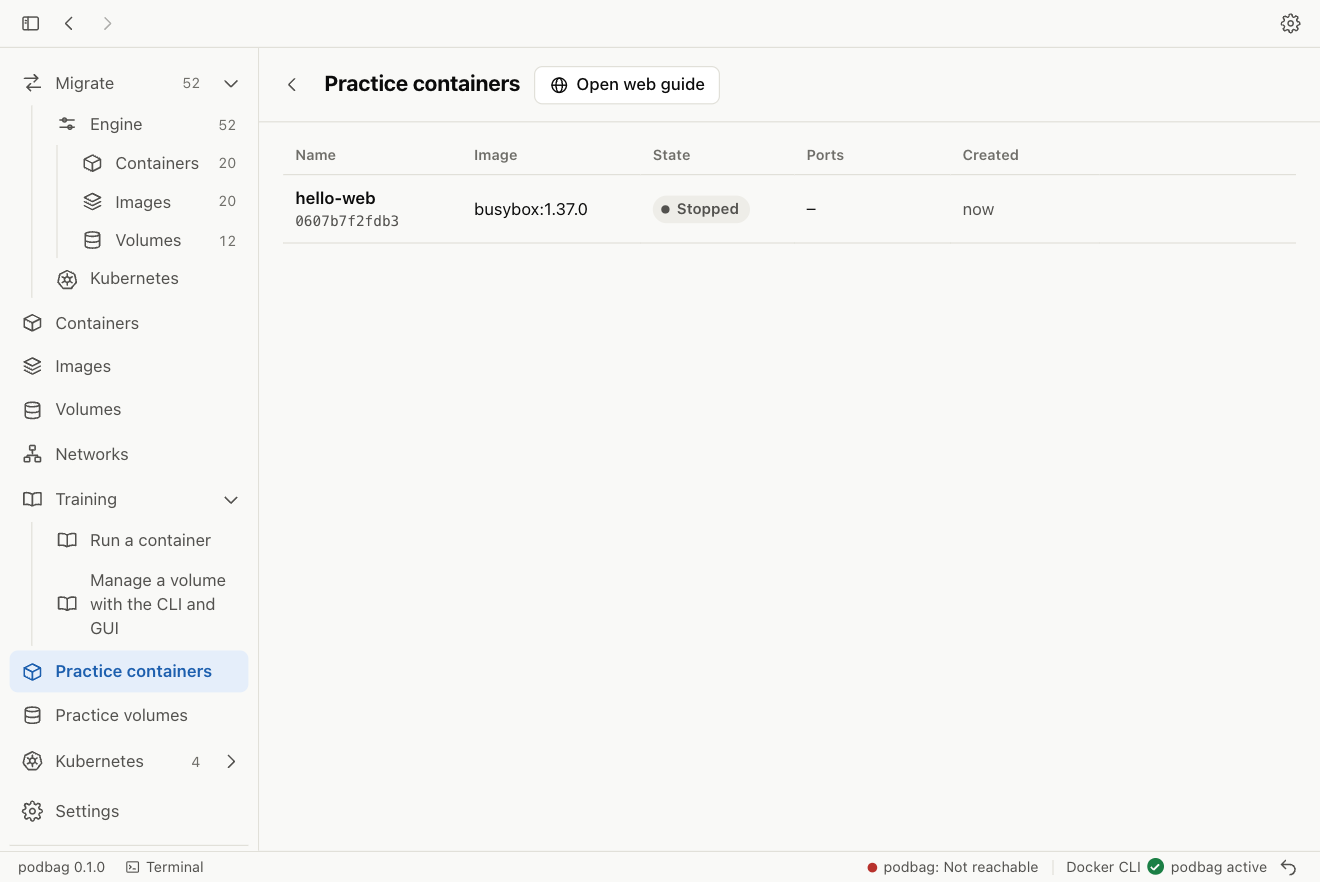
Leave the practice terminal open. Select Practice containers in Desktop. Find hello-web with a running status and select Stop in its row. You can also open the container details and select Stop there.
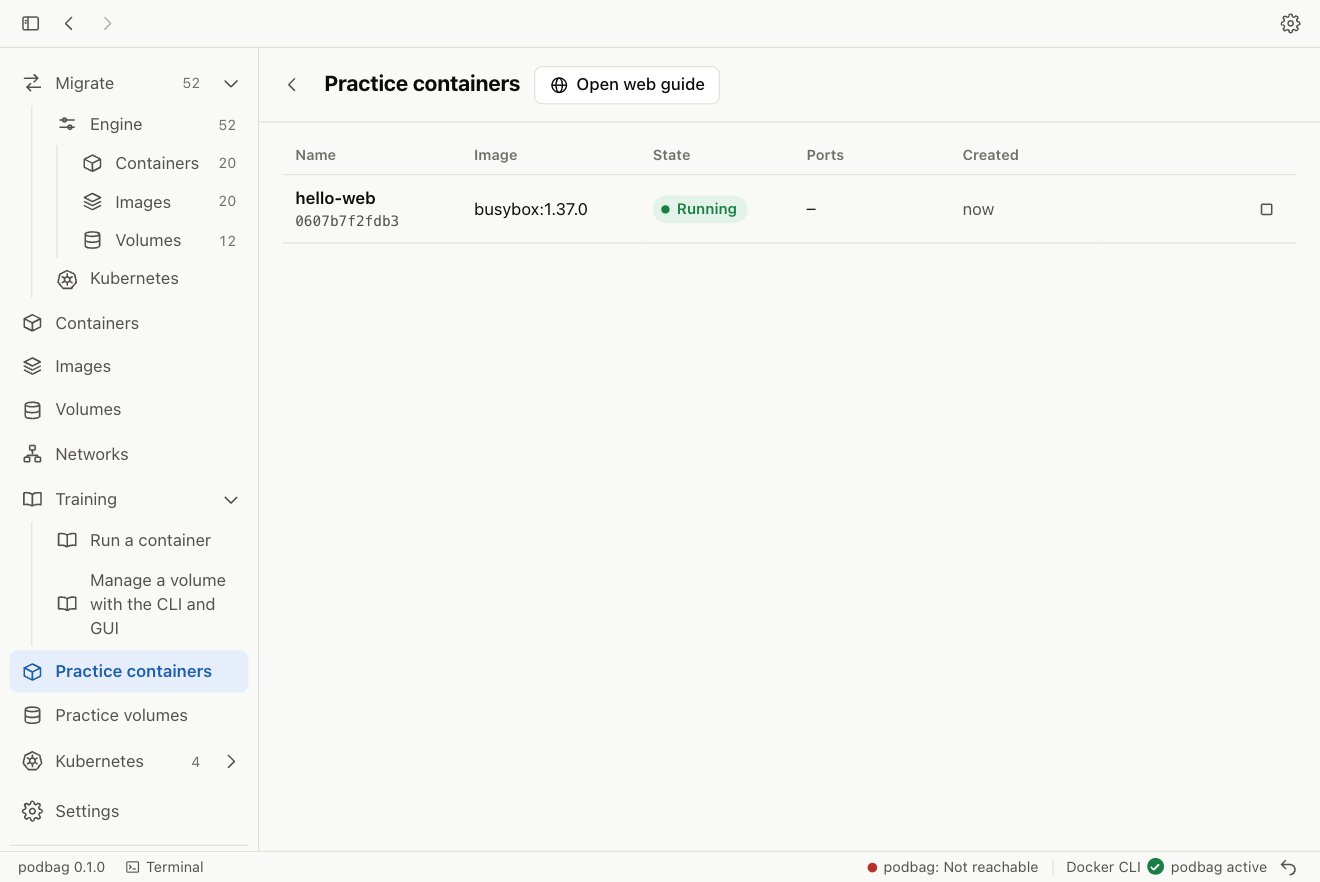
The container row shows Exited. Select the module under Training to see Check the status in the CLI and copy its command.
Check the result in the CLI
Return to the same practice terminal and list all containers. The -a option includes stopped containers.
podbag ps -a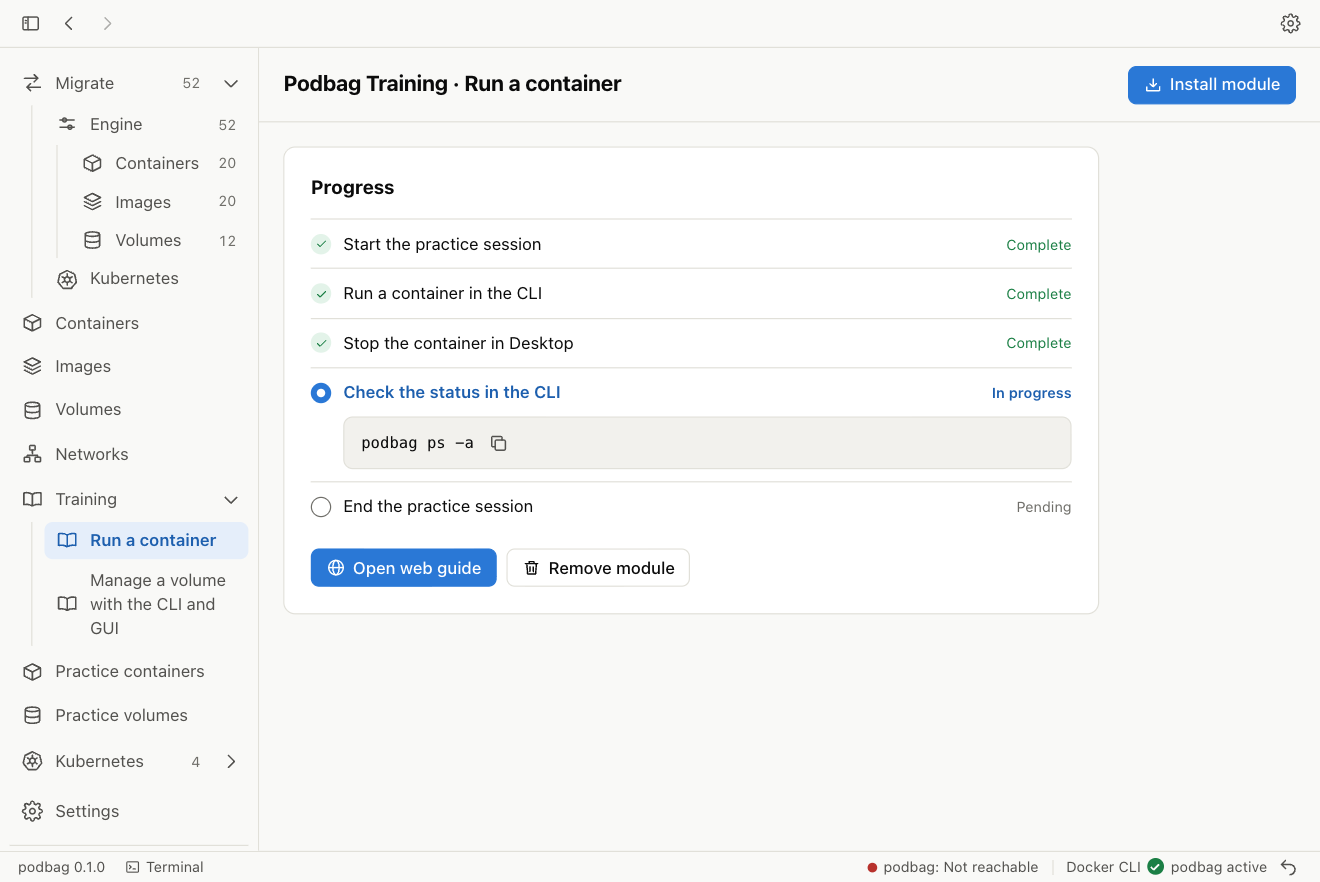
Confirm that hello-web shows Exited. The practice terminal prints Verified.

Finish the practice session
Type exit. Podbag removes the practice container, its downloaded image, and the temporary store. The module and its completion record remain available in Training.