Podbag Training · Replace and clean up a web service
by The podbag team · 
 @SteelCrabon in TrainingPermalink
Replace a running web service while keeping its content. Use the same volume and local address before and after the replacement.
Time 15 minutes
Beginner course
Run your first container → Open a web server in the browser → Keep files across containers → Replace and clean up a web service
Install the module
Download web-service-lifecycle.podbag. In Desktop, select Install module at the top of Training. Choose the downloaded file and confirm.
podbag lab install web-service-lifecycle.podbag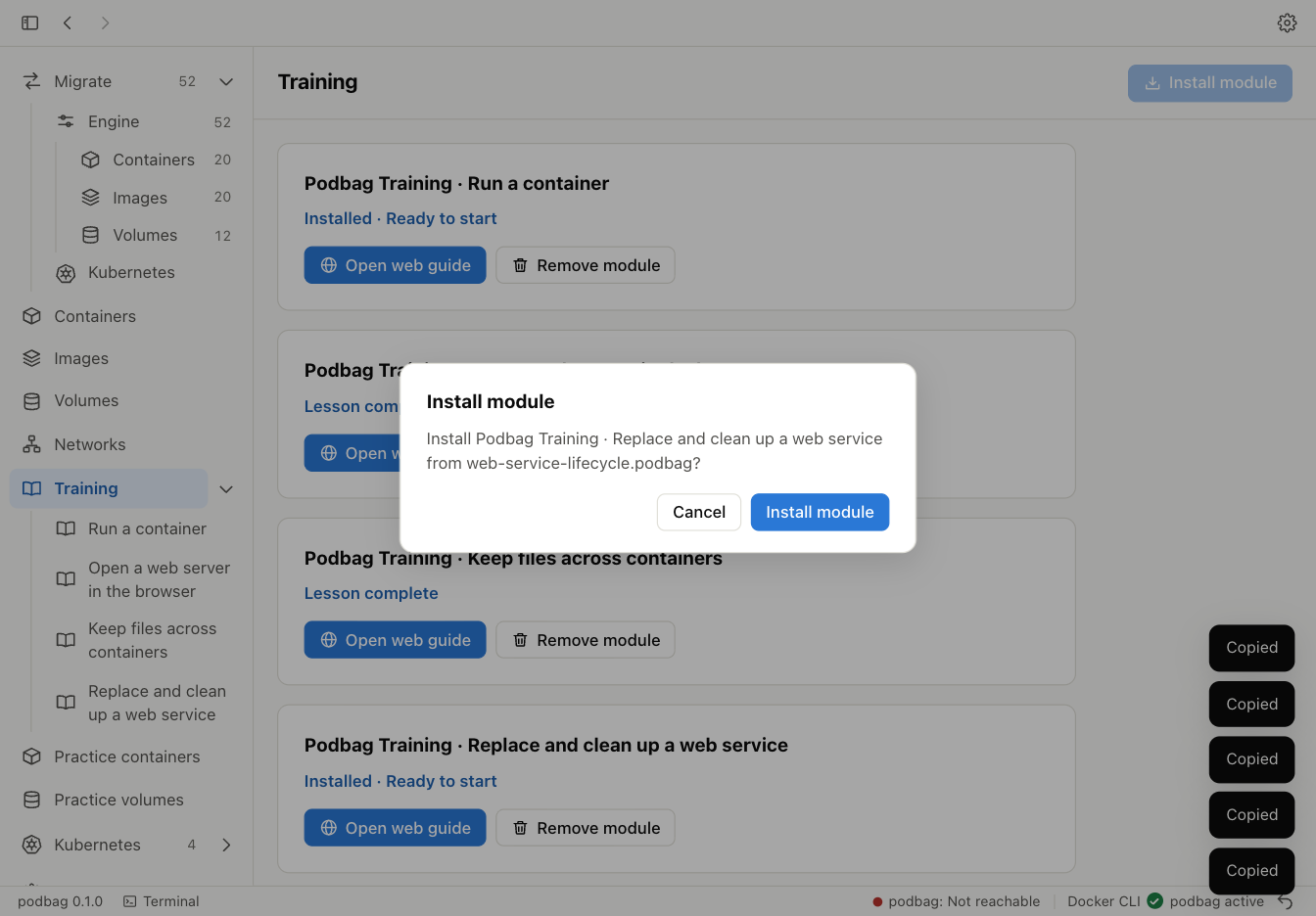
Start the practice session
Expand Training in the sidebar and select the module. Copy the start command into your terminal. Continue when it shows the training $ prompt.
podbag lab start web-service-lifecycle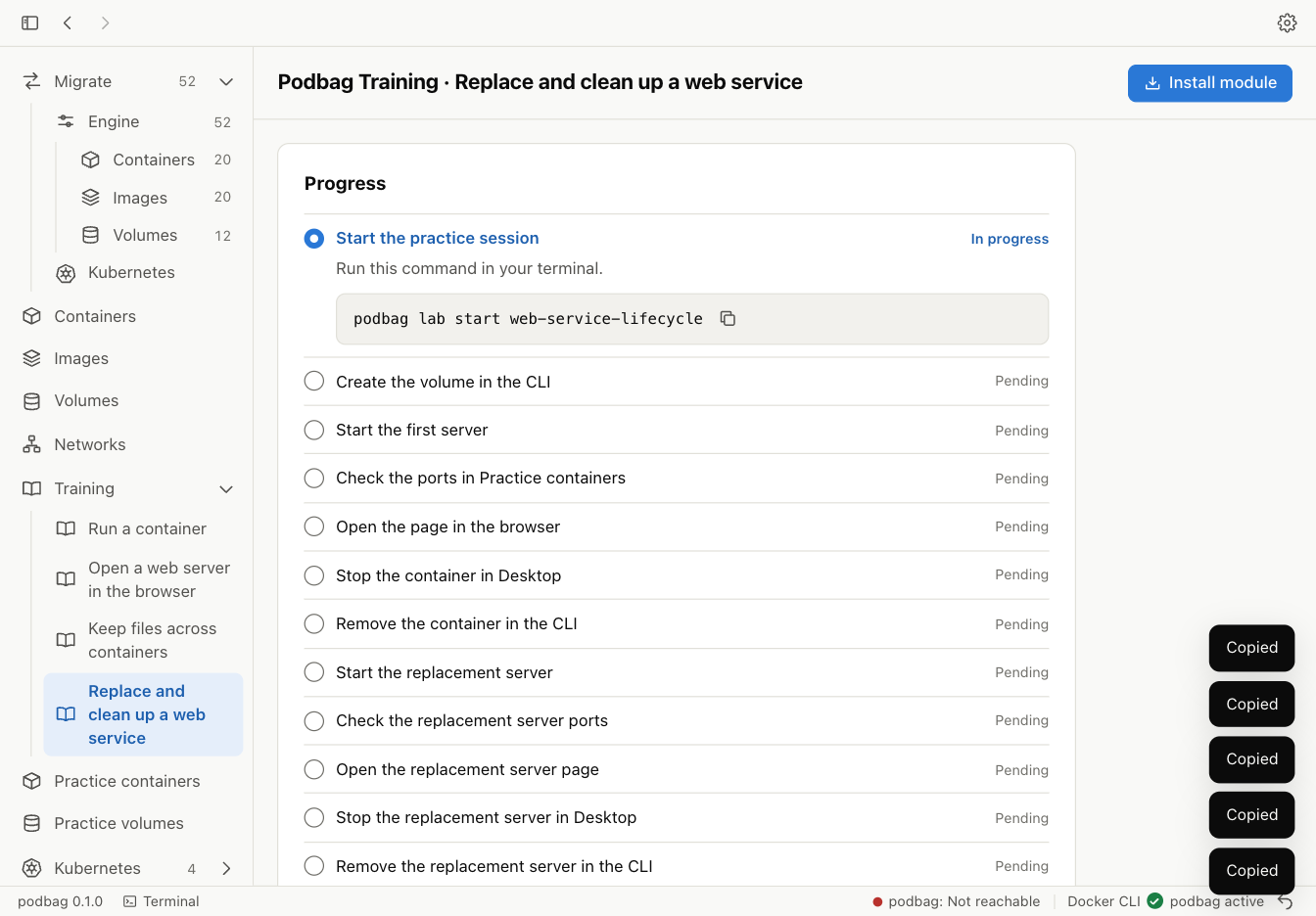
If the default port is already in use, use the port in Training. The command and browser address show the same port.
Create the site volume
Create site-data to hold the web page.
podbag volume create site-data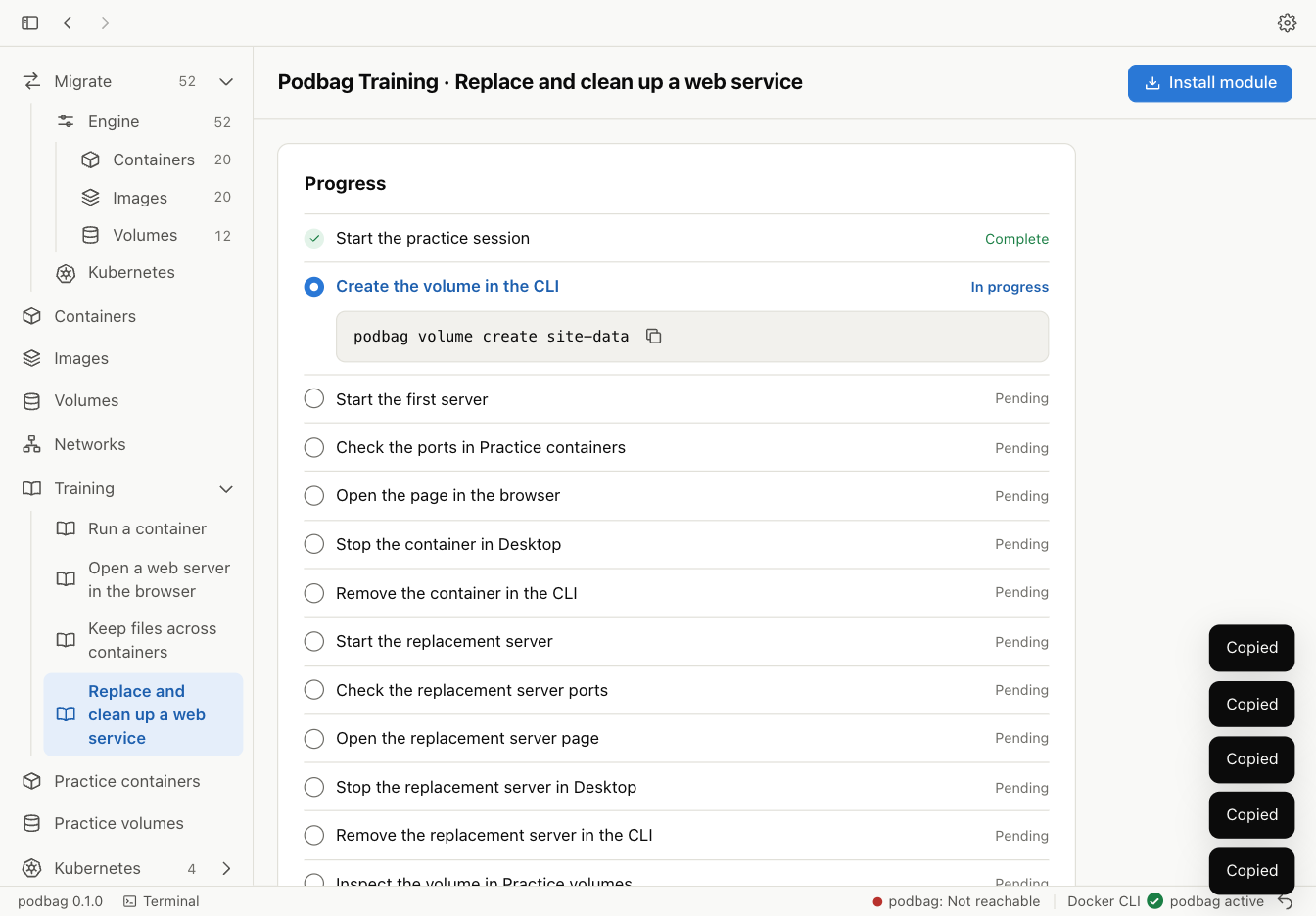
Start the first server
Start site-v1. It writes index.html to the volume and serves it on the published port. The default is 18081 on your computer.
podbag run -d --name site-v1 -p 127.0.0.1:18081:8080 -v site-data:/site docker.io/library/busybox:1.37.0 sh -c 'printf "%s\n" "My Podbag site" > /site/index.html && exec httpd -f -p 8080 -h /site'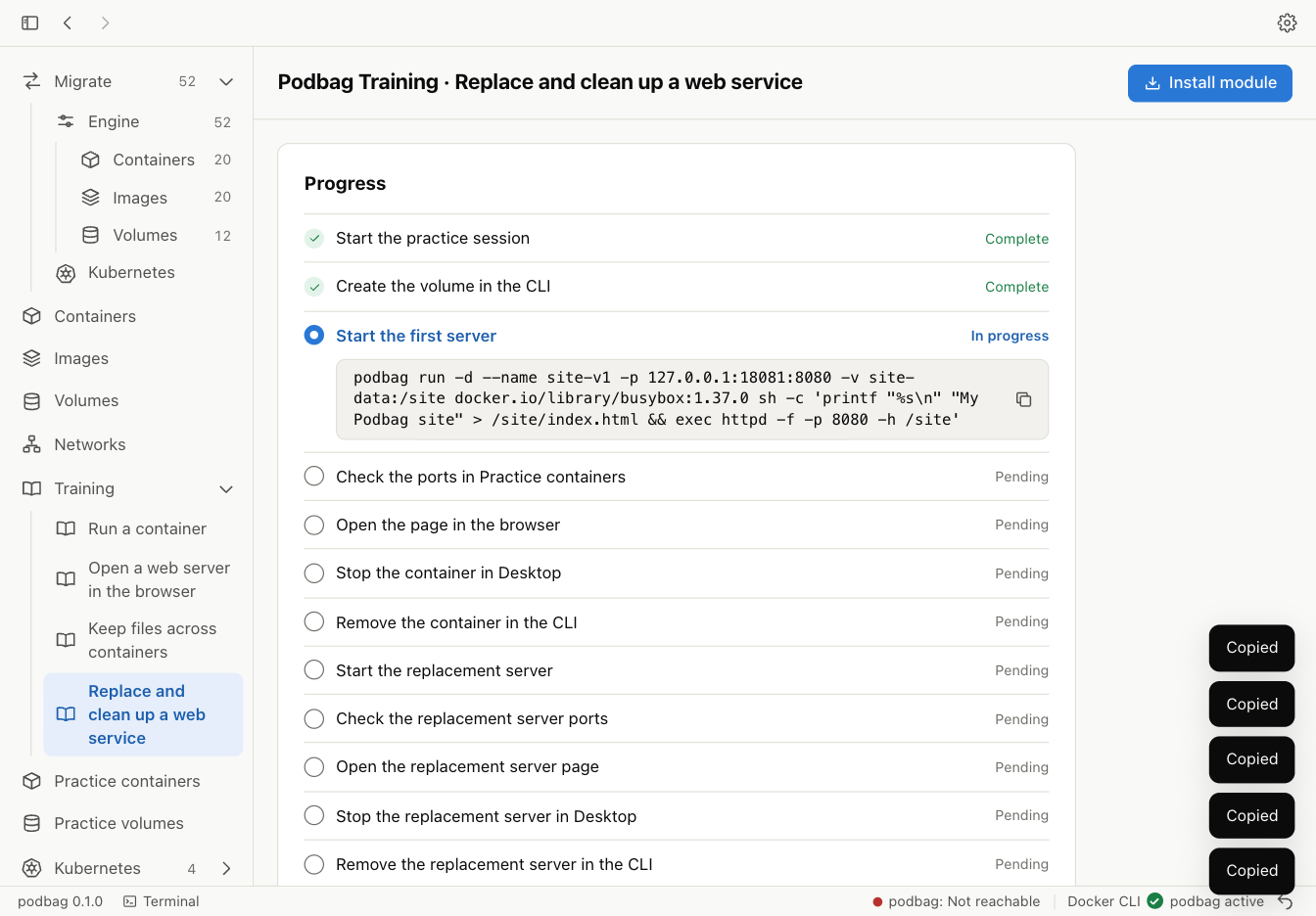
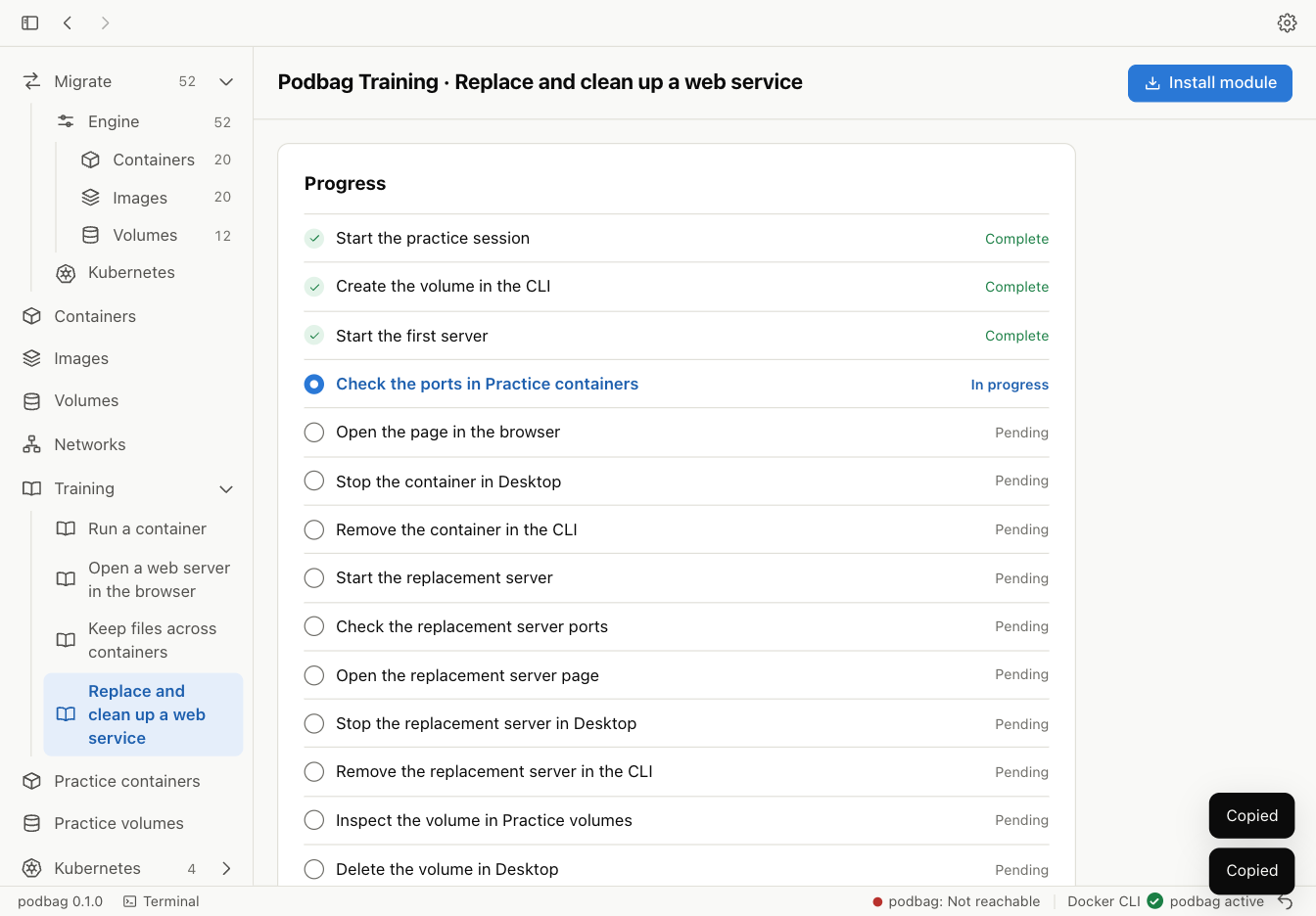
Check the first server ports
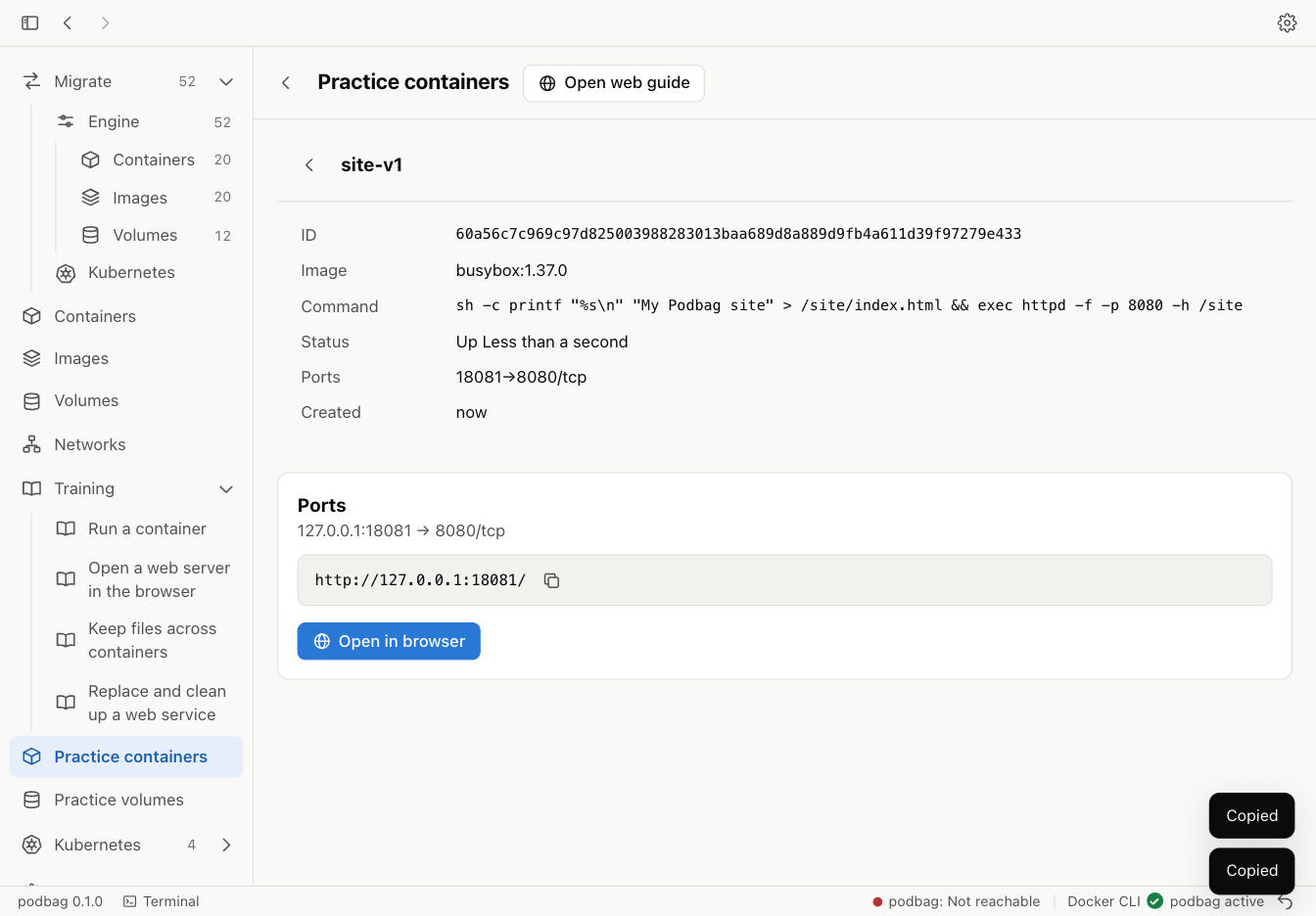
Select Practice containers → site-v1 → View ports. Check the address in the detail panel.
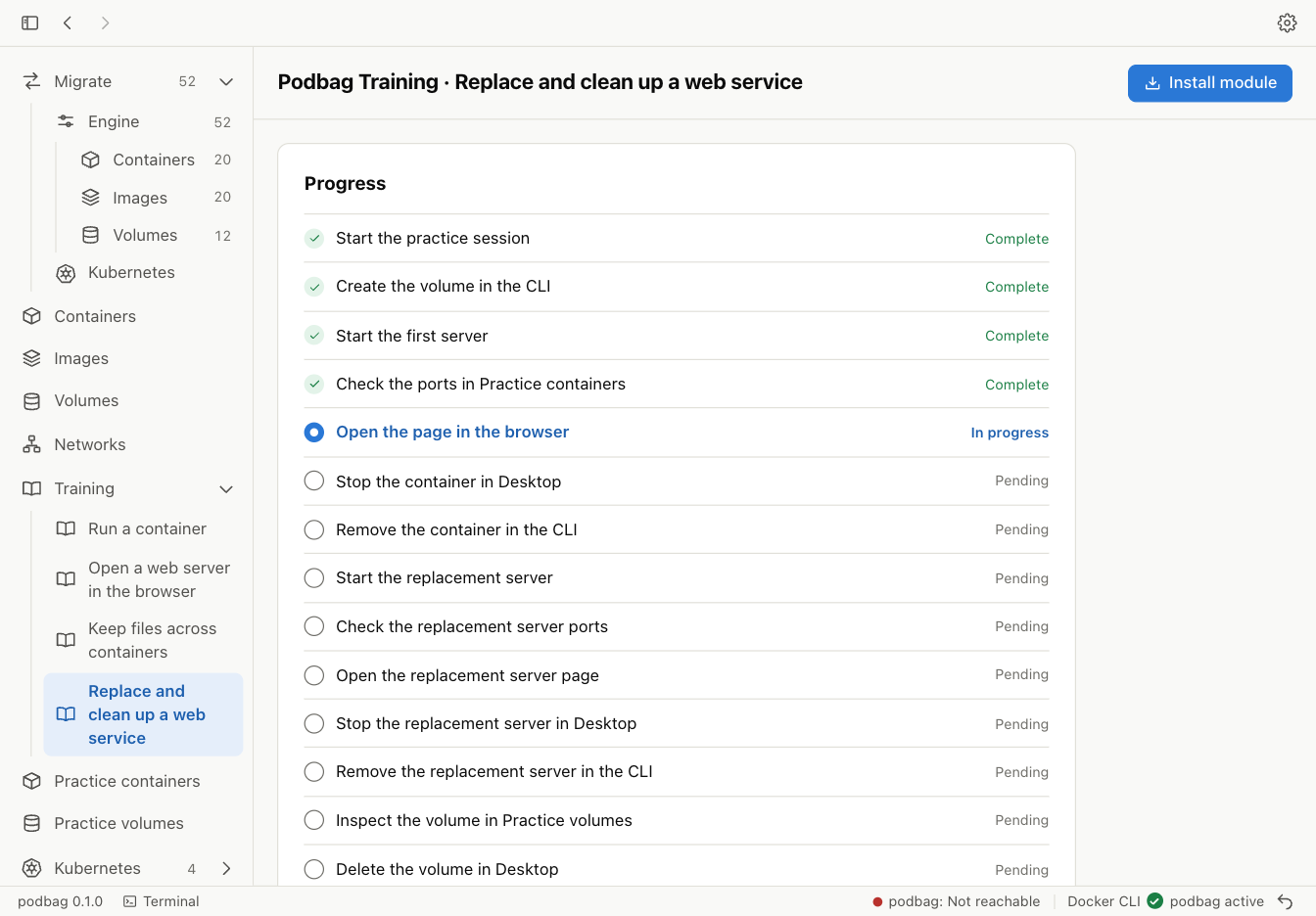
Open the first server page
Select Open in browser. Confirm that the page displays My Podbag site.

Stop the first server
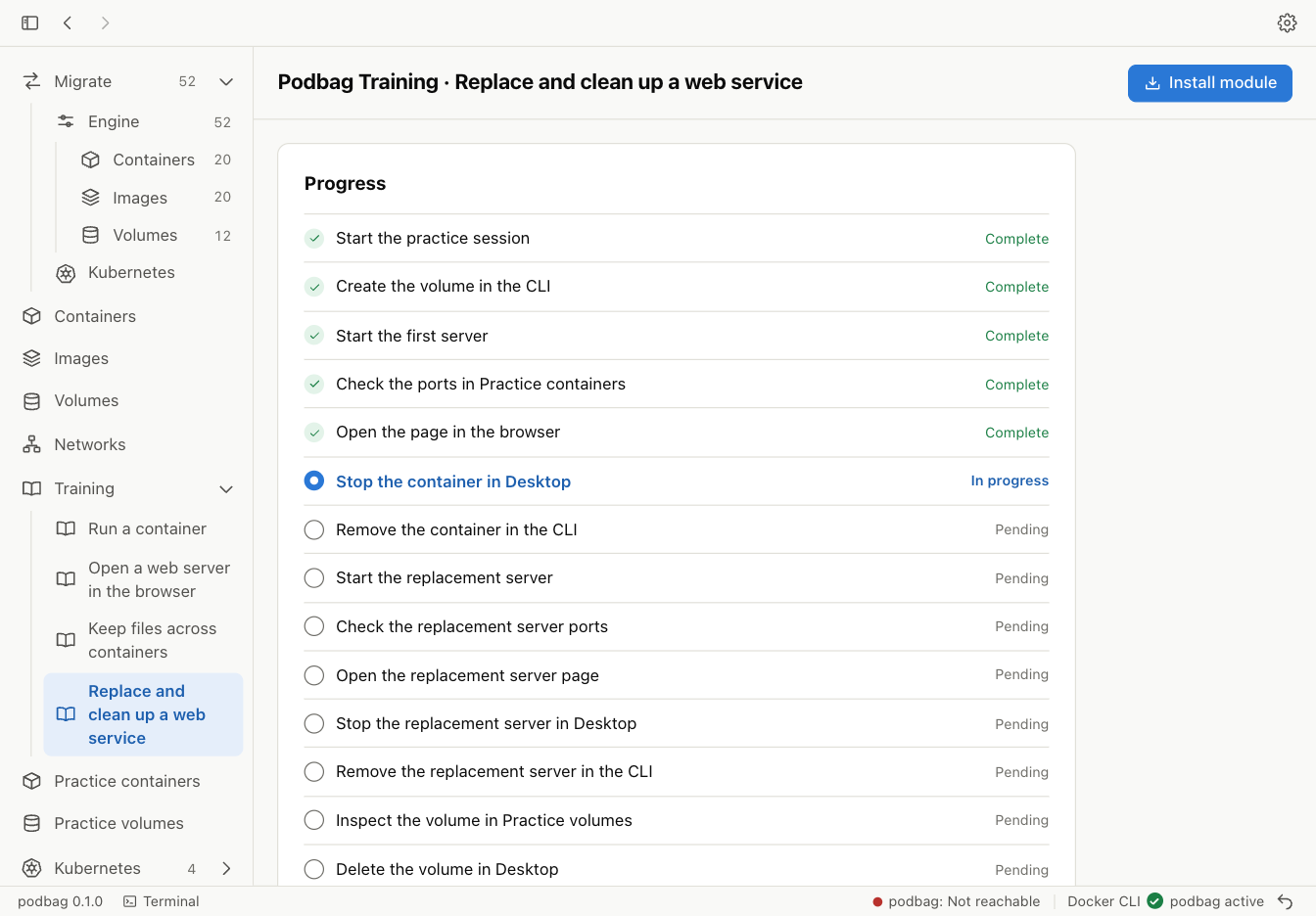
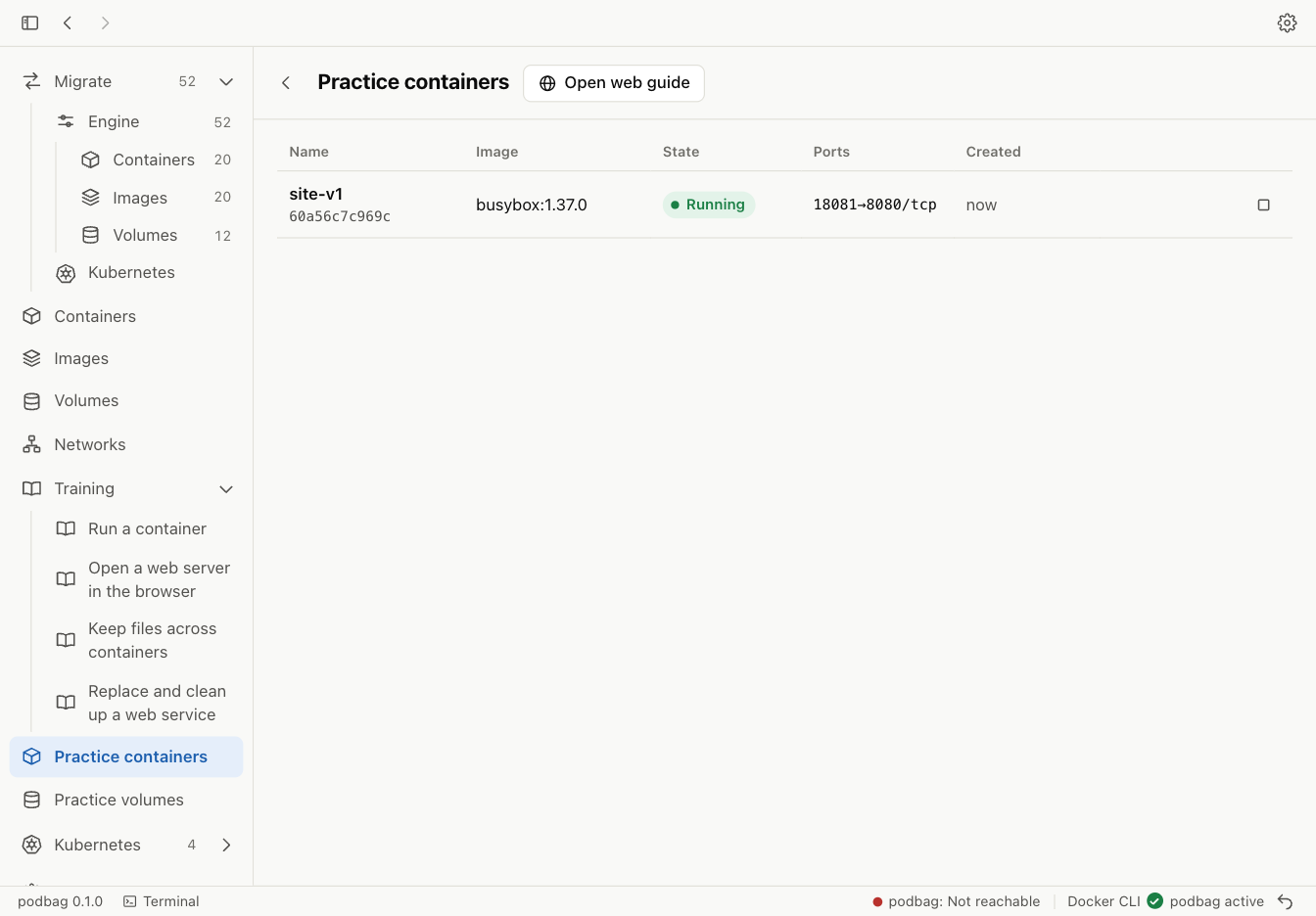
Select Practice containers → site-v1 → Stop.
Remove the first server
Run the removal command. The container disappears and site-data stays in the practice session.
podbag rm site-v1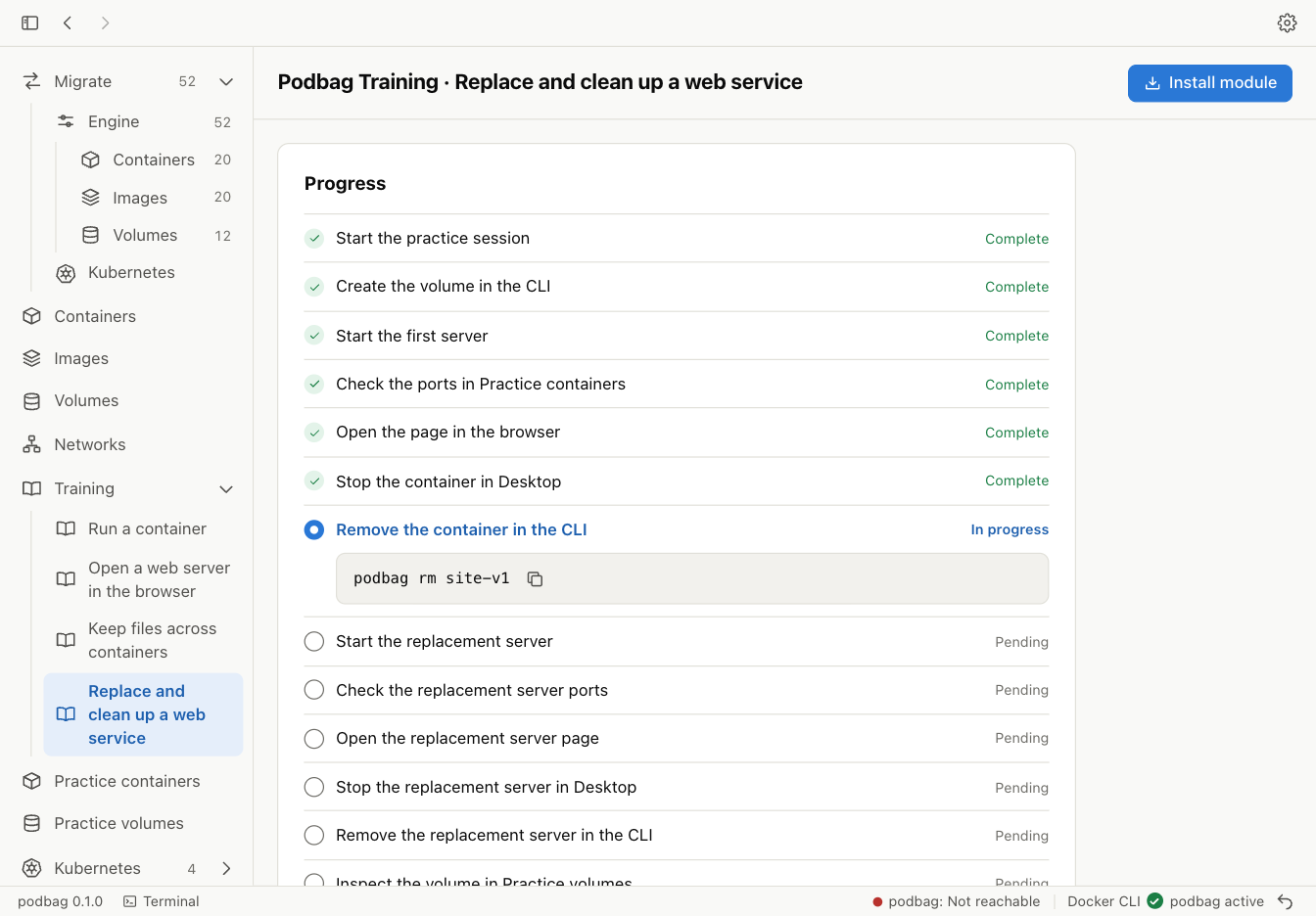
Start the replacement server
Start site-v2 on the same port. Mount site-data read-only. The server uses the page already stored in the volume.
podbag run -d --name site-v2 -p 127.0.0.1:18081:8080 -v site-data:/site:ro docker.io/library/busybox:1.37.0 httpd -f -p 8080 -h /site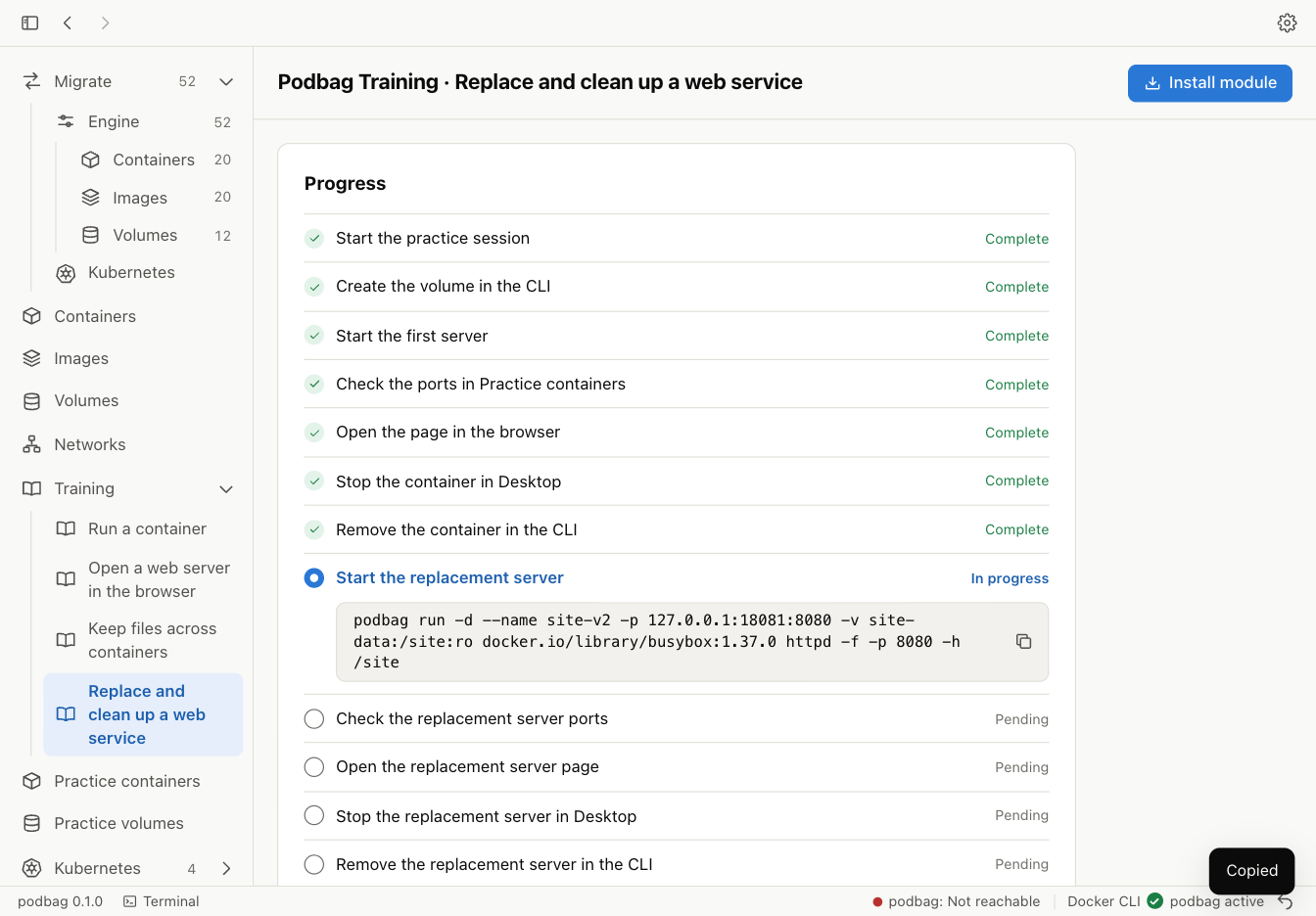
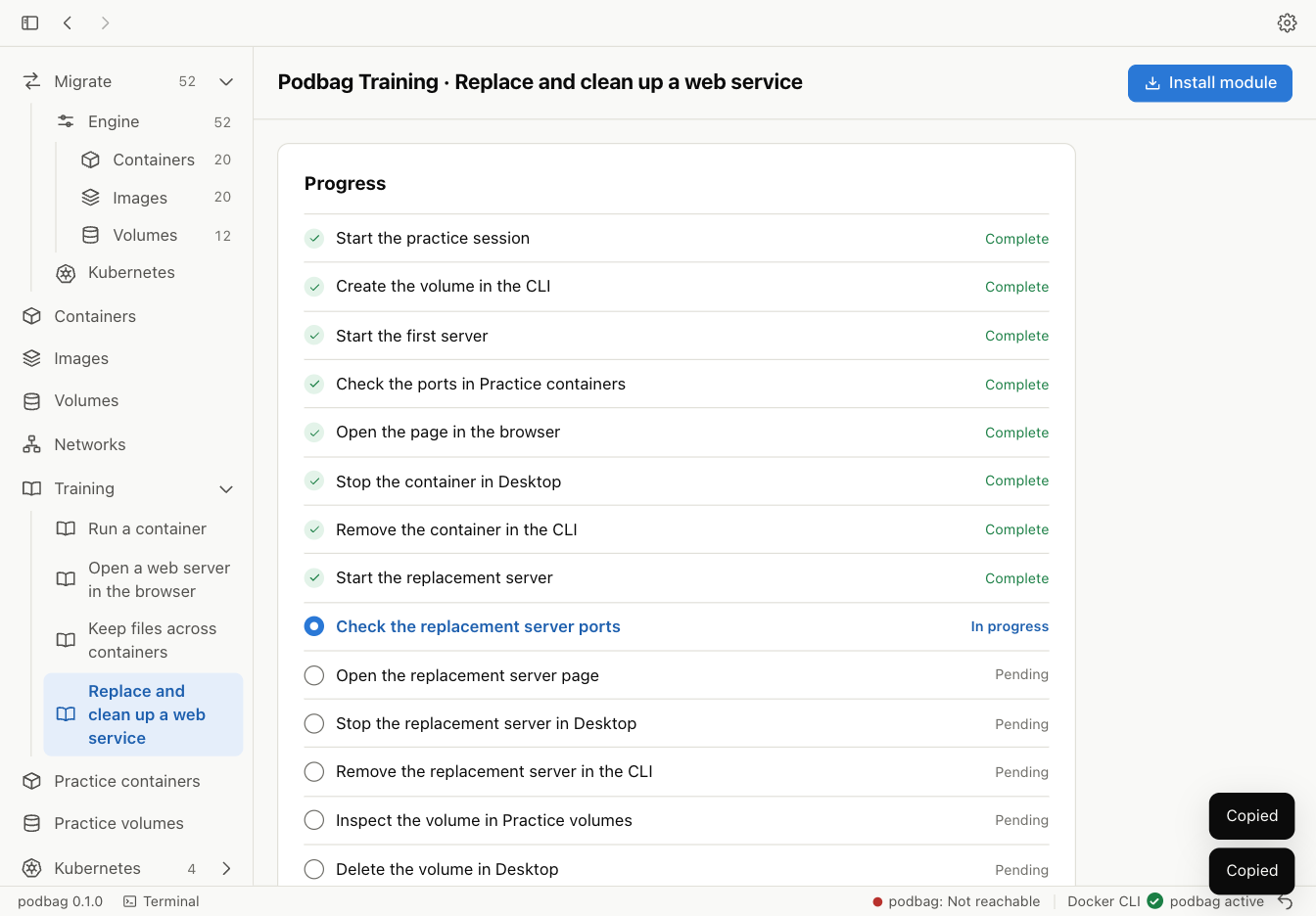
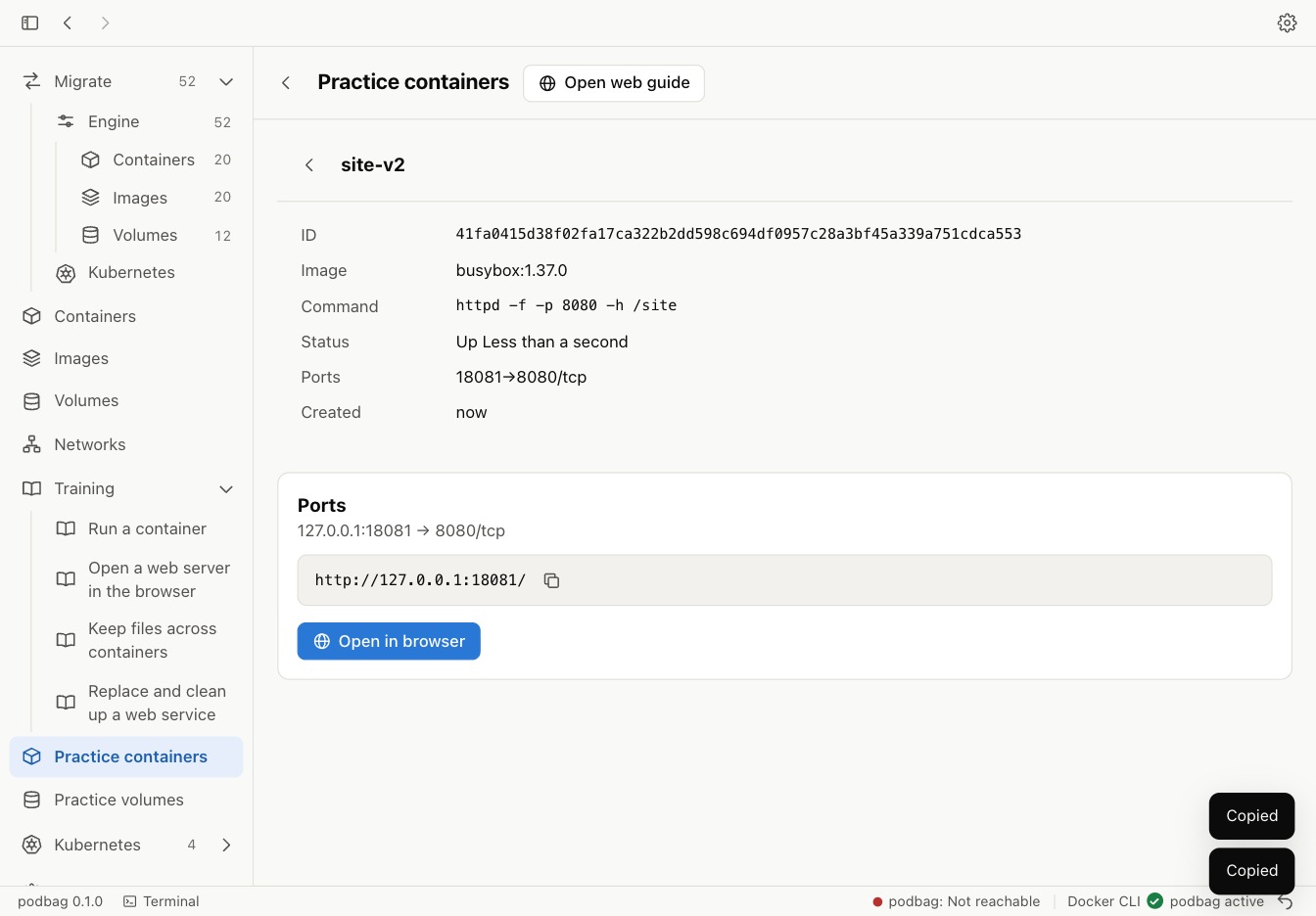
Check the replacement server ports
Select Practice containers → site-v2 → View ports. Confirm the address matches the first server.
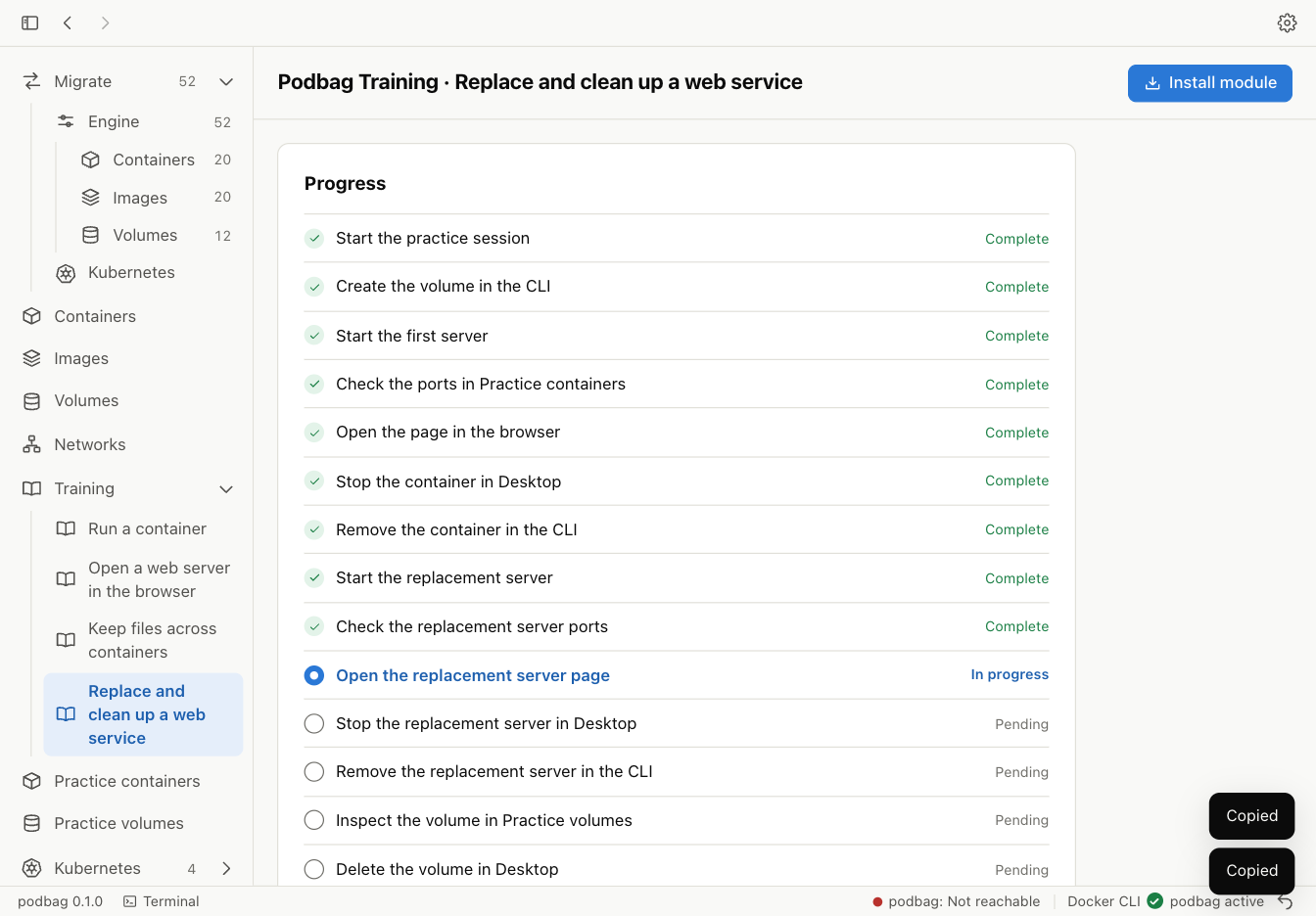
Open the replacement server page
Select Open in browser again. The page still displays My Podbag site. Desktop checks the response with a new request.

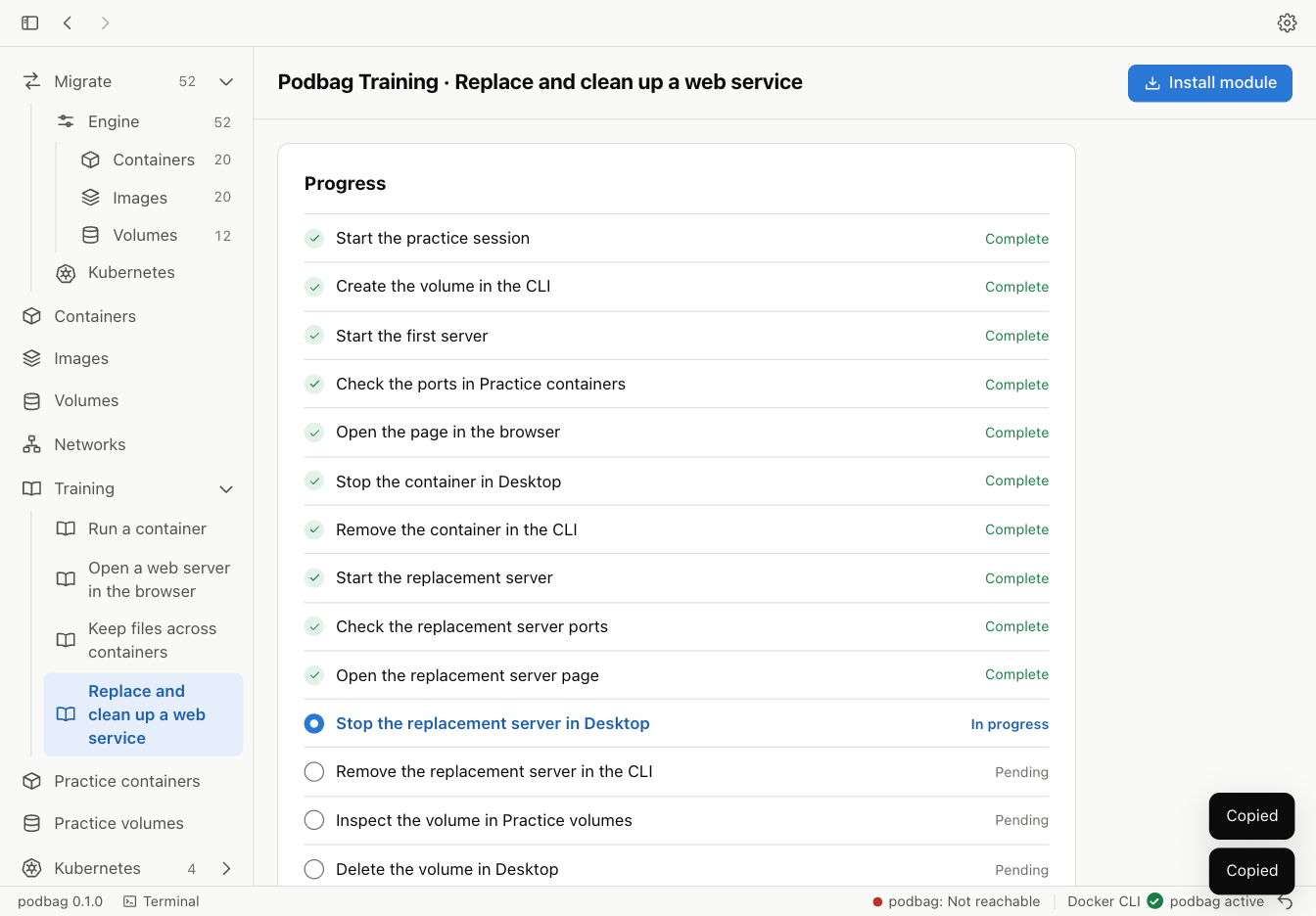
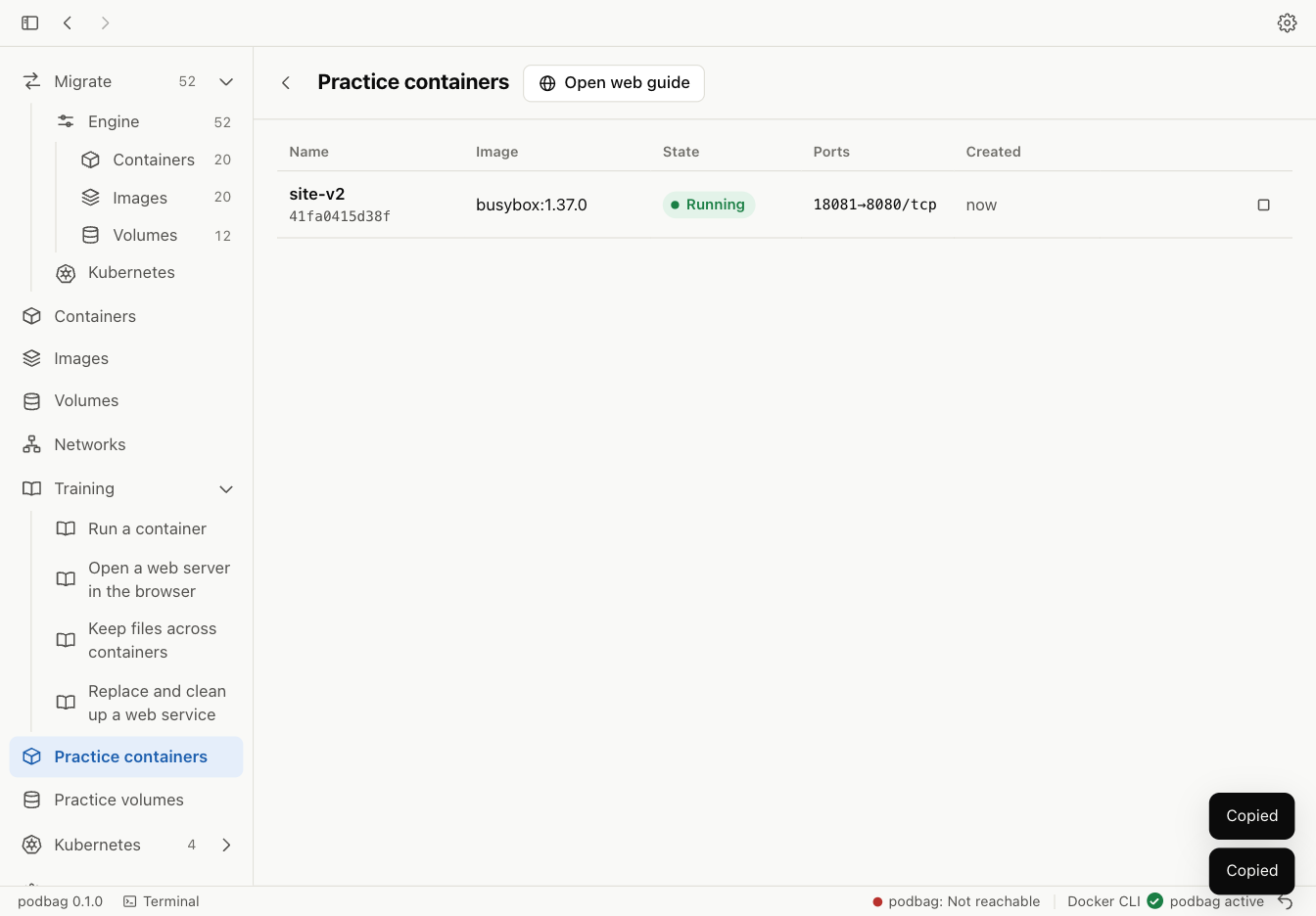
Stop the replacement server
Select Practice containers → site-v2 → Stop.
Remove the replacement server
Remove the stopped container in the same terminal.
podbag rm site-v2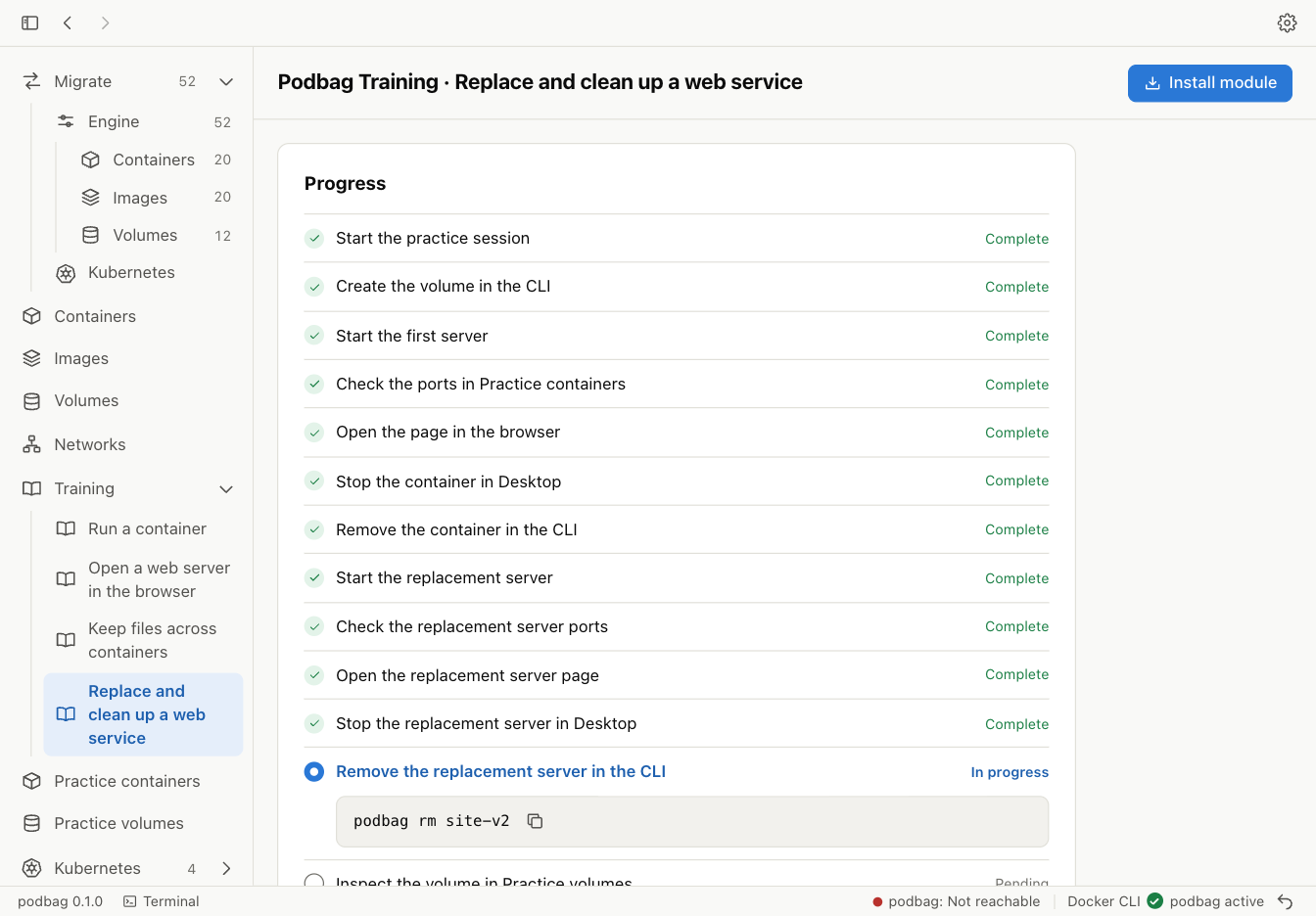
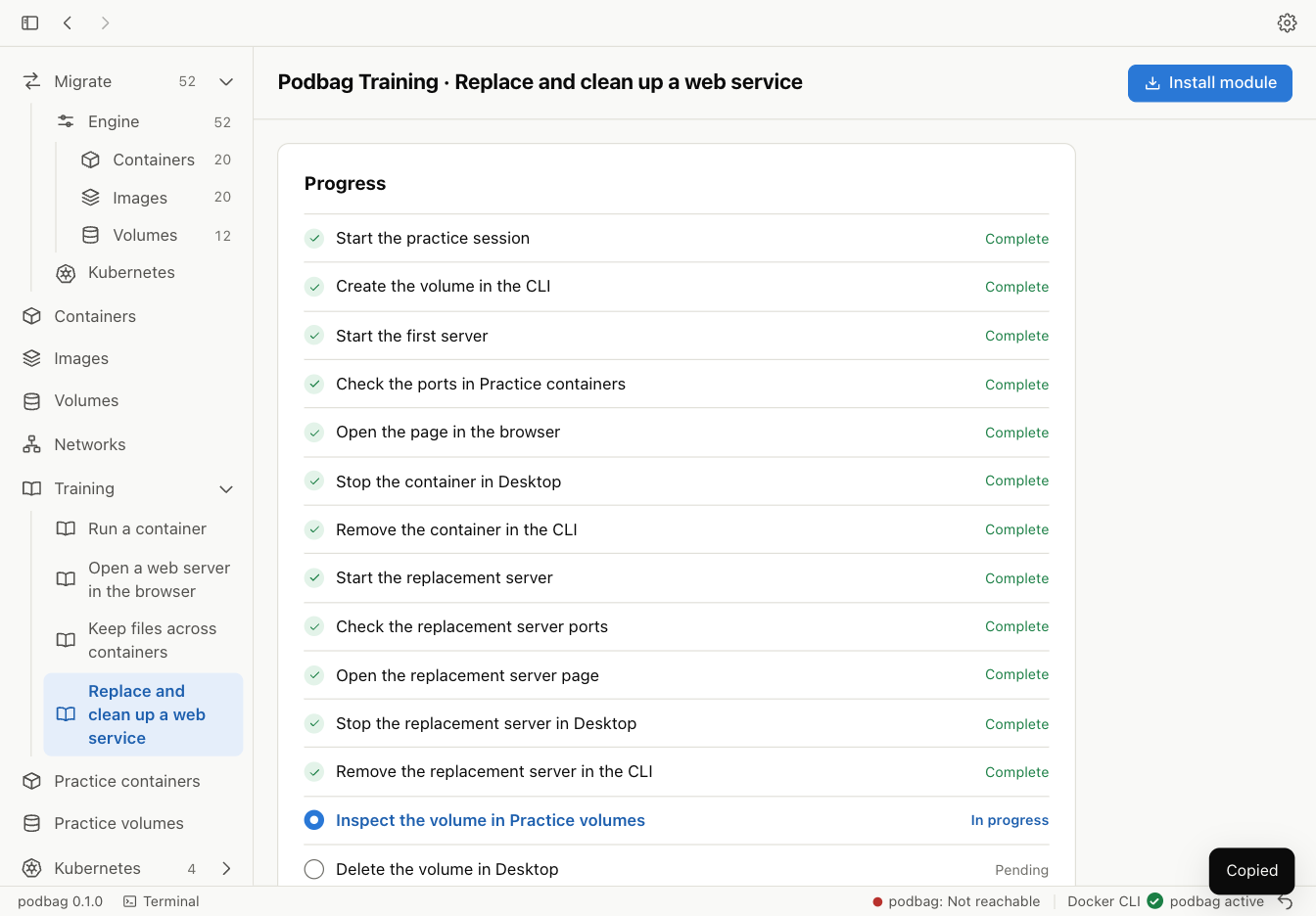
Open the site volume details
Select Practice volumes → site-data to see the remaining volume.
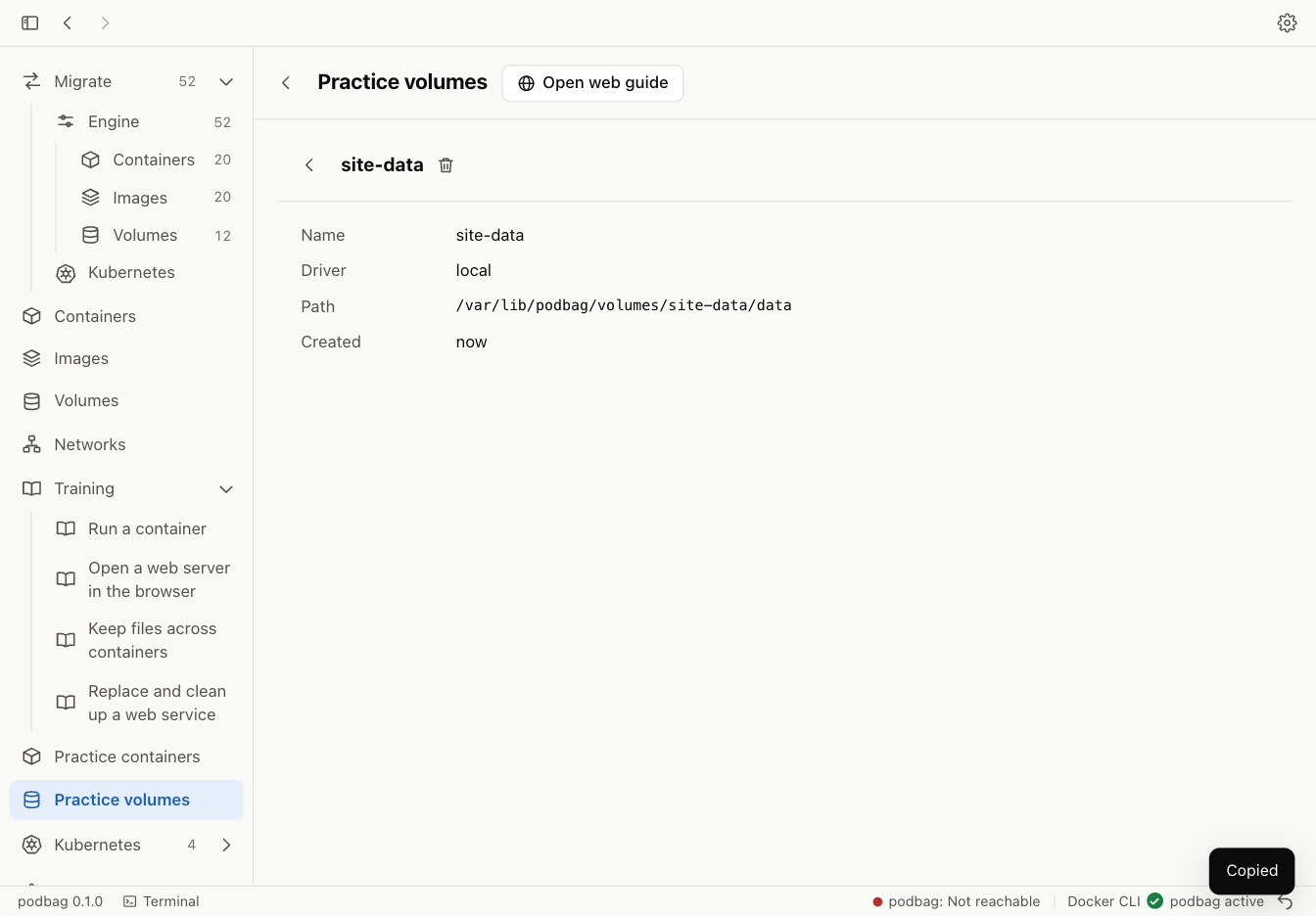
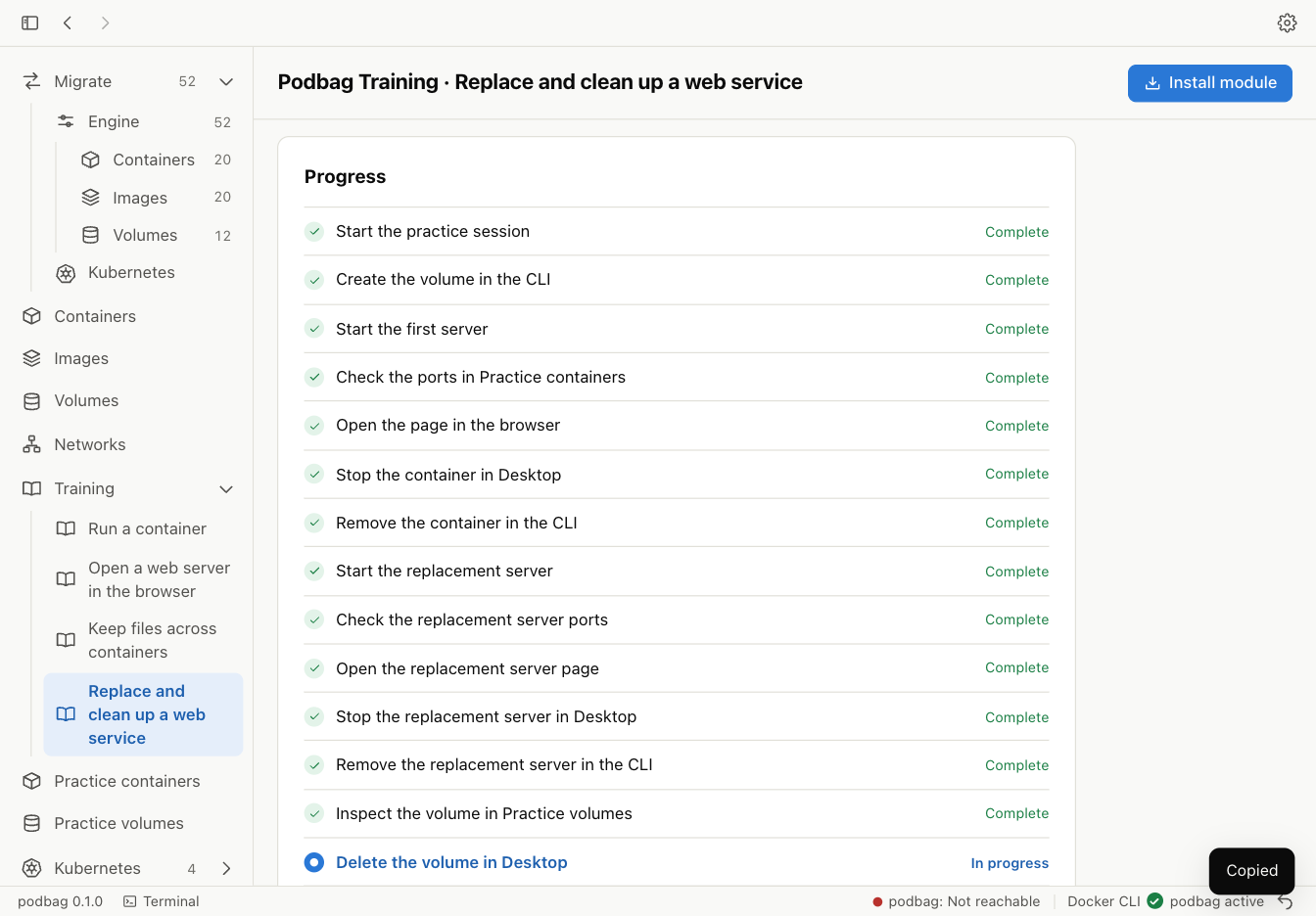
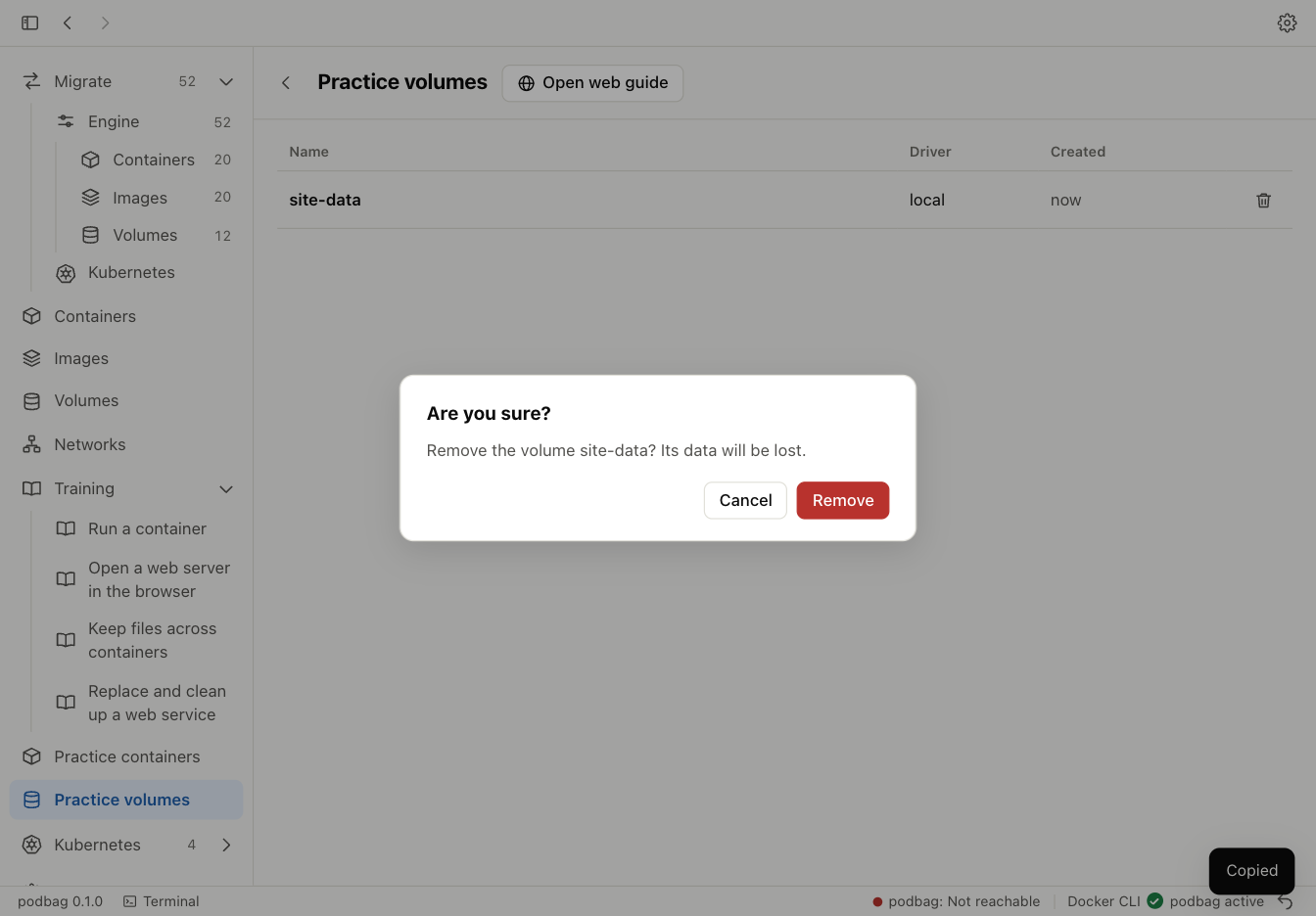
Delete the site volume
Select Remove and confirm the volume name.
Check the container list
List all containers in the practice session. The list is empty.
podbag ps -a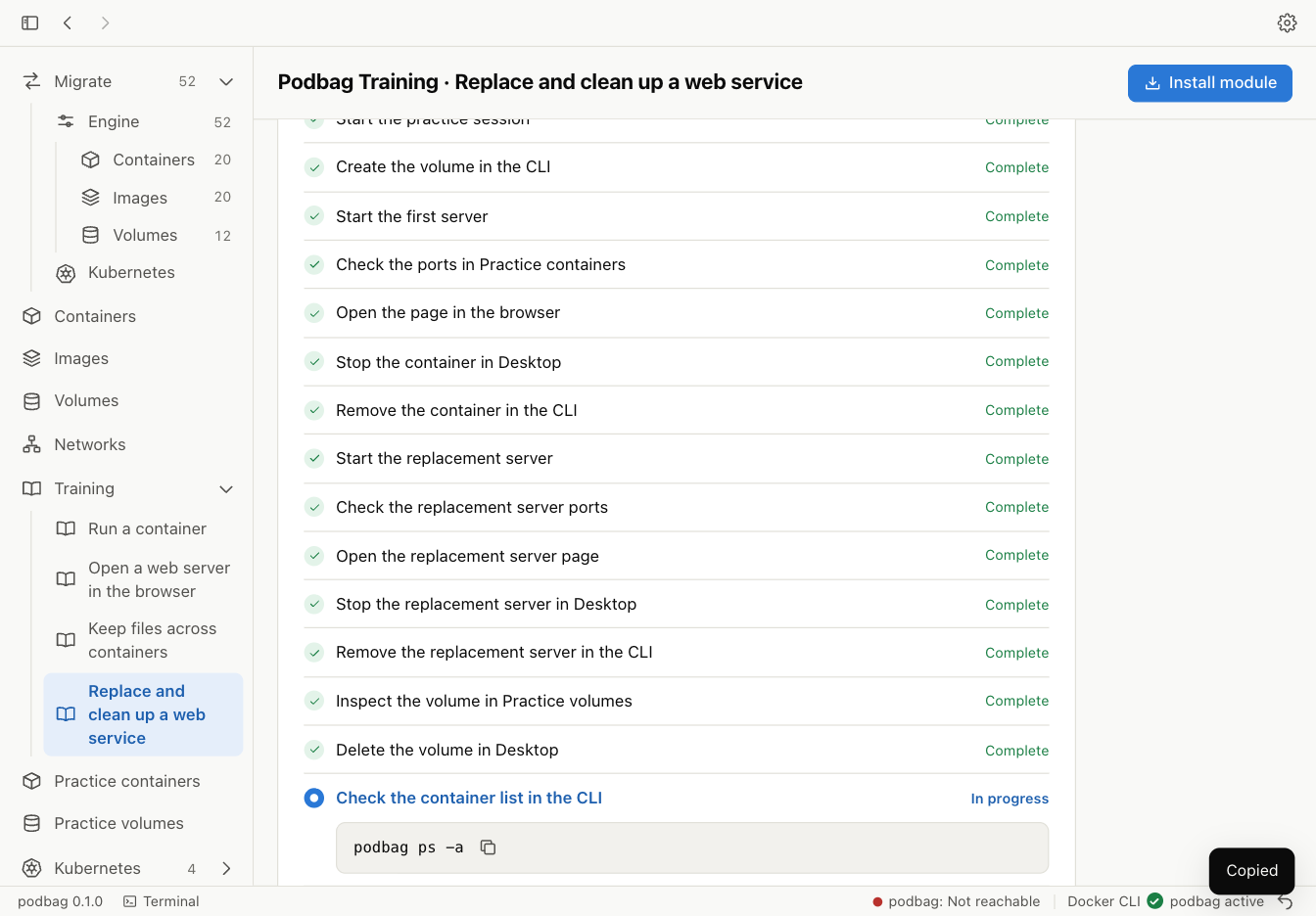
Check the volume list
List the practice volumes. The list is empty.
podbag volume ls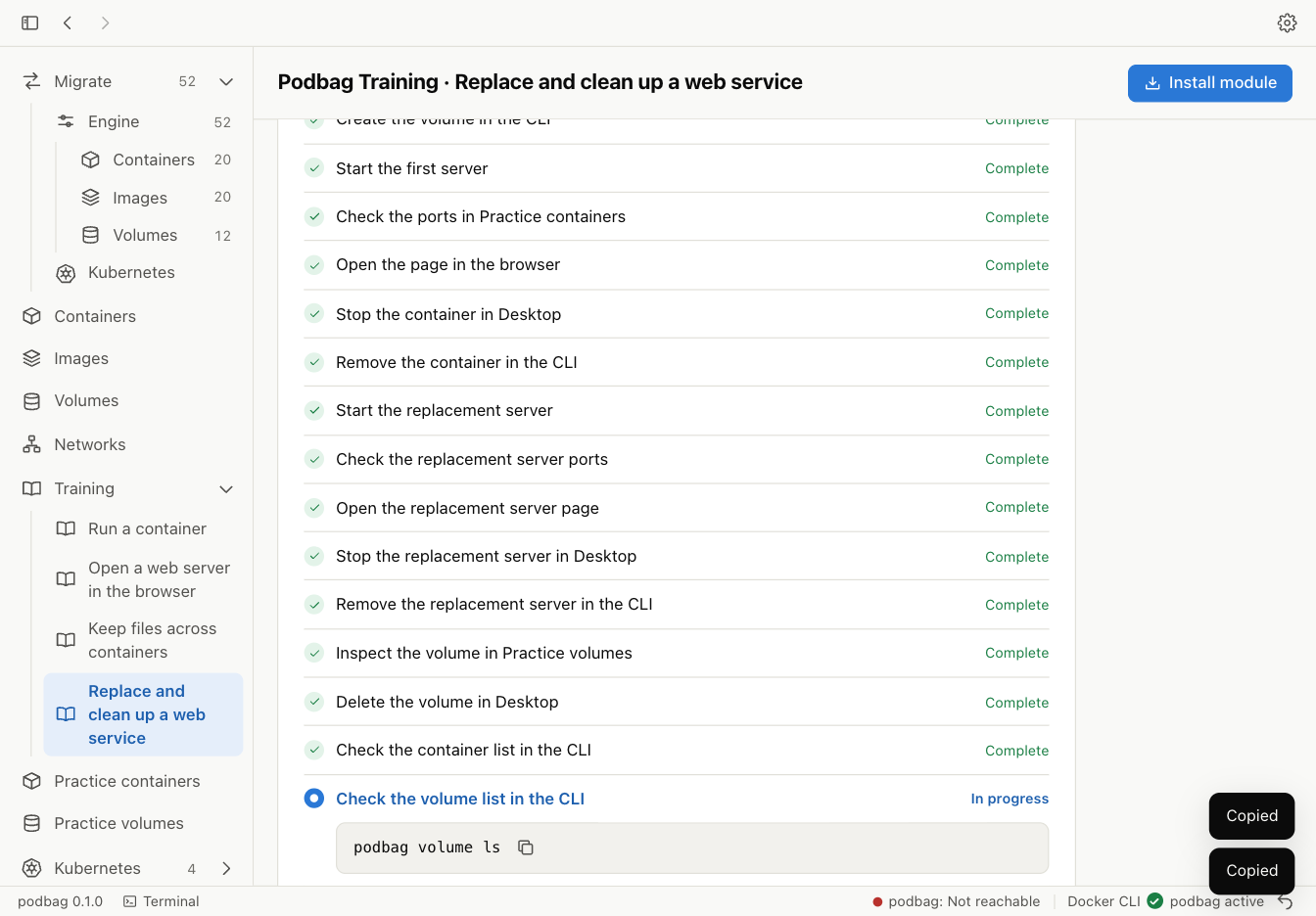
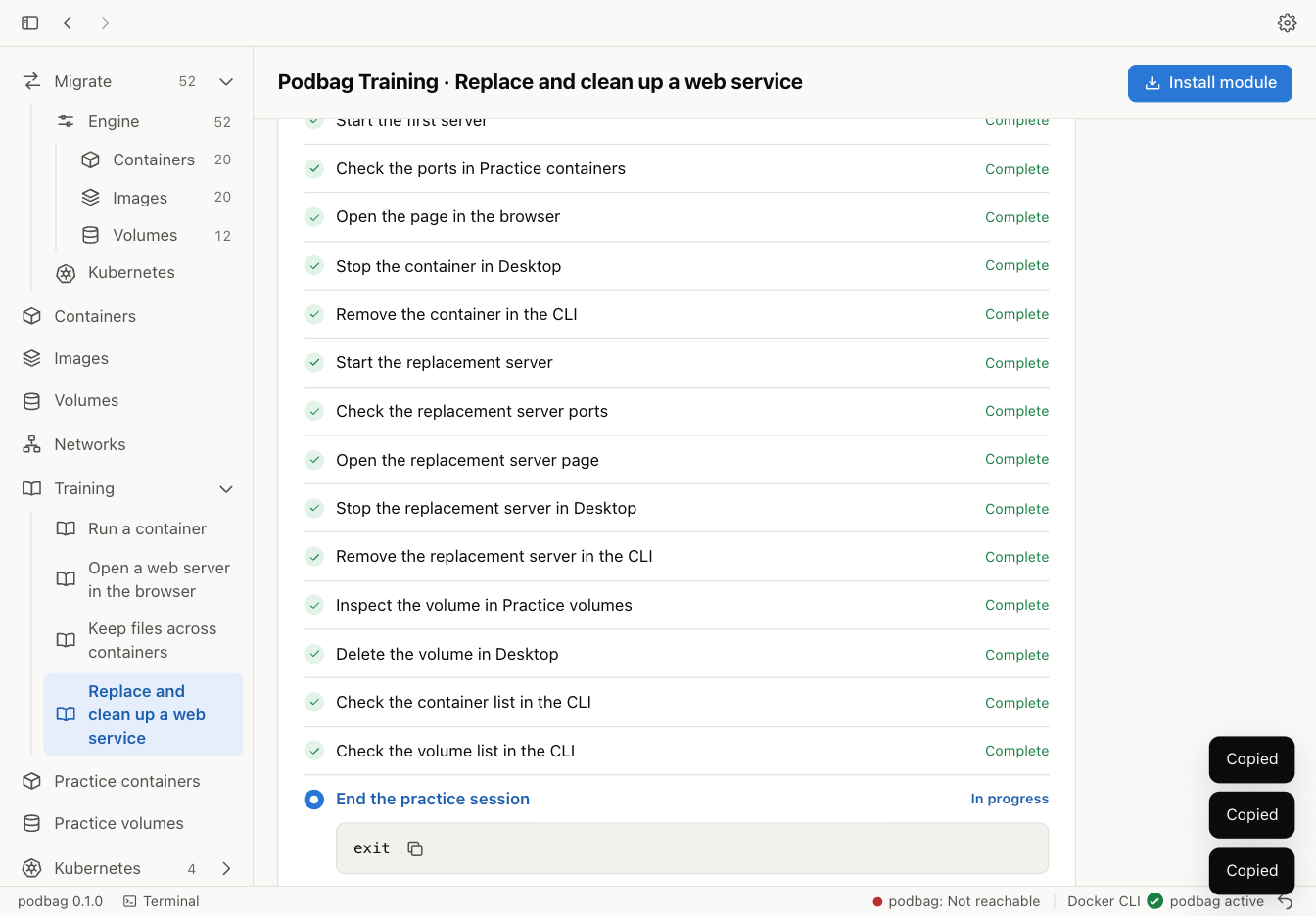
Finish the practice session
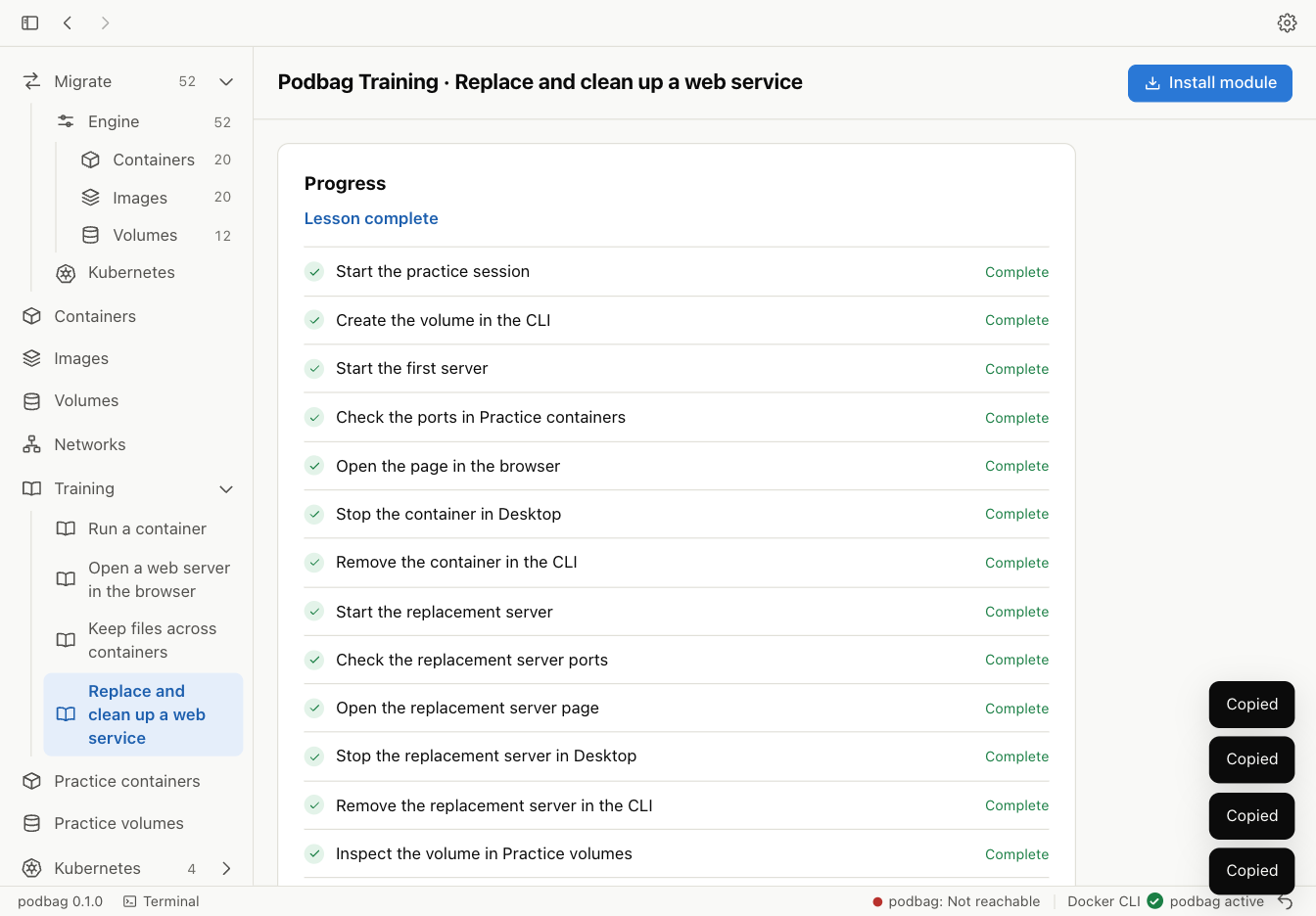
Run the command shown in the final step. Training records completion after the practice environment has been removed.
exit