Podbag Training · Manage a volume with the CLI and GUI
by The podbag team · 
 @SteelCrabon in TrainingPermalink
Create a volume in the CLI, inspect and remove it in Podbag Desktop, and watch your progress update.
What is a volume?
A volume stores files separately from a container. Here, app-a saves note.txt in the my-api volume. After app-a is removed, a new container, app-b, mounts the same volume and reads the file. Deleting the volume itself removes its files.
Install the module
Use a compatible build of Desktop and the CLI. Select Install module at the top of Training, choose the downloaded file, and confirm. You can also run this command from your download folder.
podbag lab install cli-gui-volumes.podbagFollow your progress in Desktop
Expand Training in the sidebar and select the installed volume module. The module shows completed, current, and pending steps. Select Open web guide to return to this page.
Start the practice session
Copy the command from the current step and run it in your terminal. Keep this page open and continue when the terminal shows volume-lab $.
podbag lab start volume-basics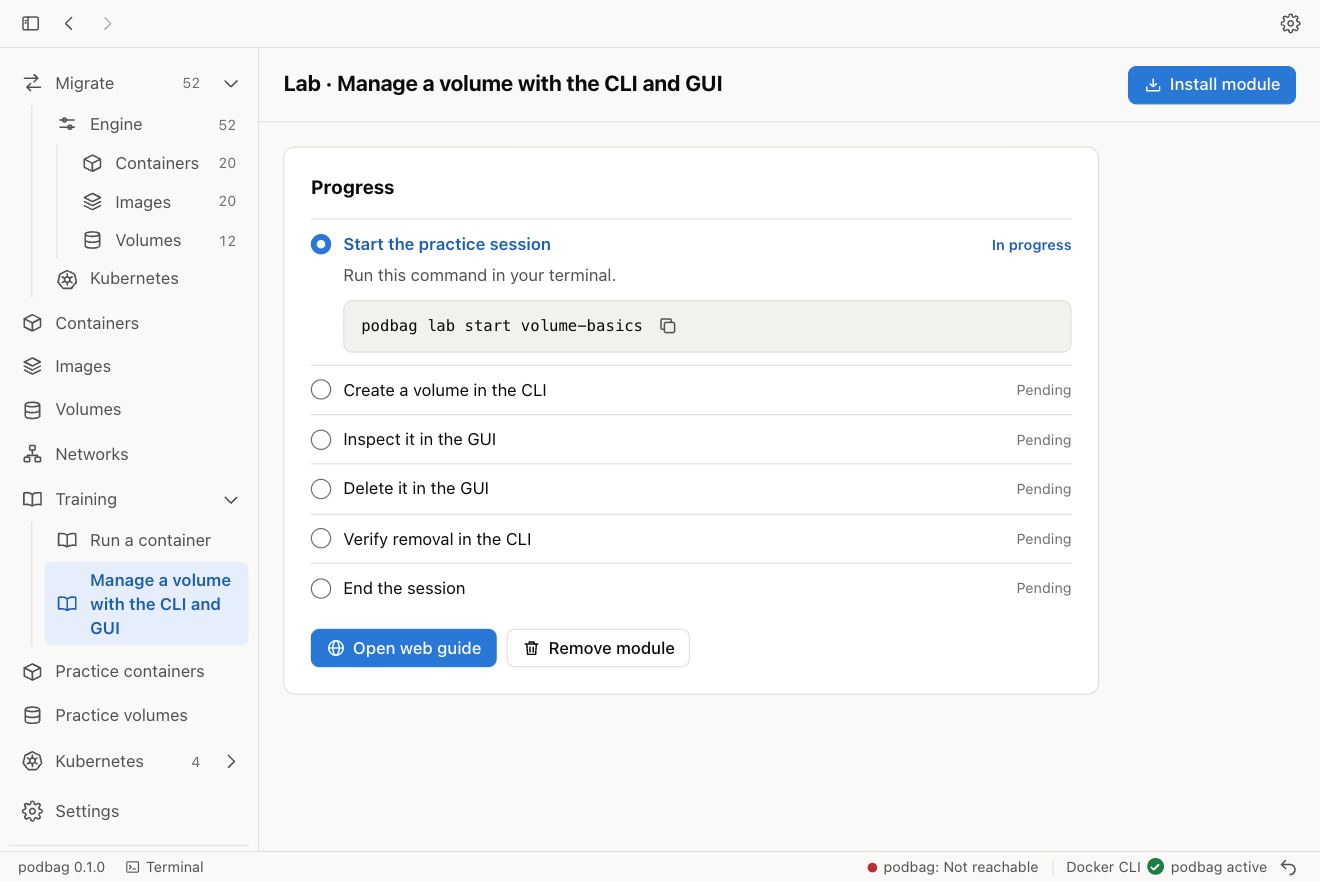
Create a volume in the CLI
Type this command at the volume-lab prompt.
podbag volume create my-api
podbag volume ls
Inspect it in the GUI
After a volume appears, Training shows the GUI inspection task in progress.
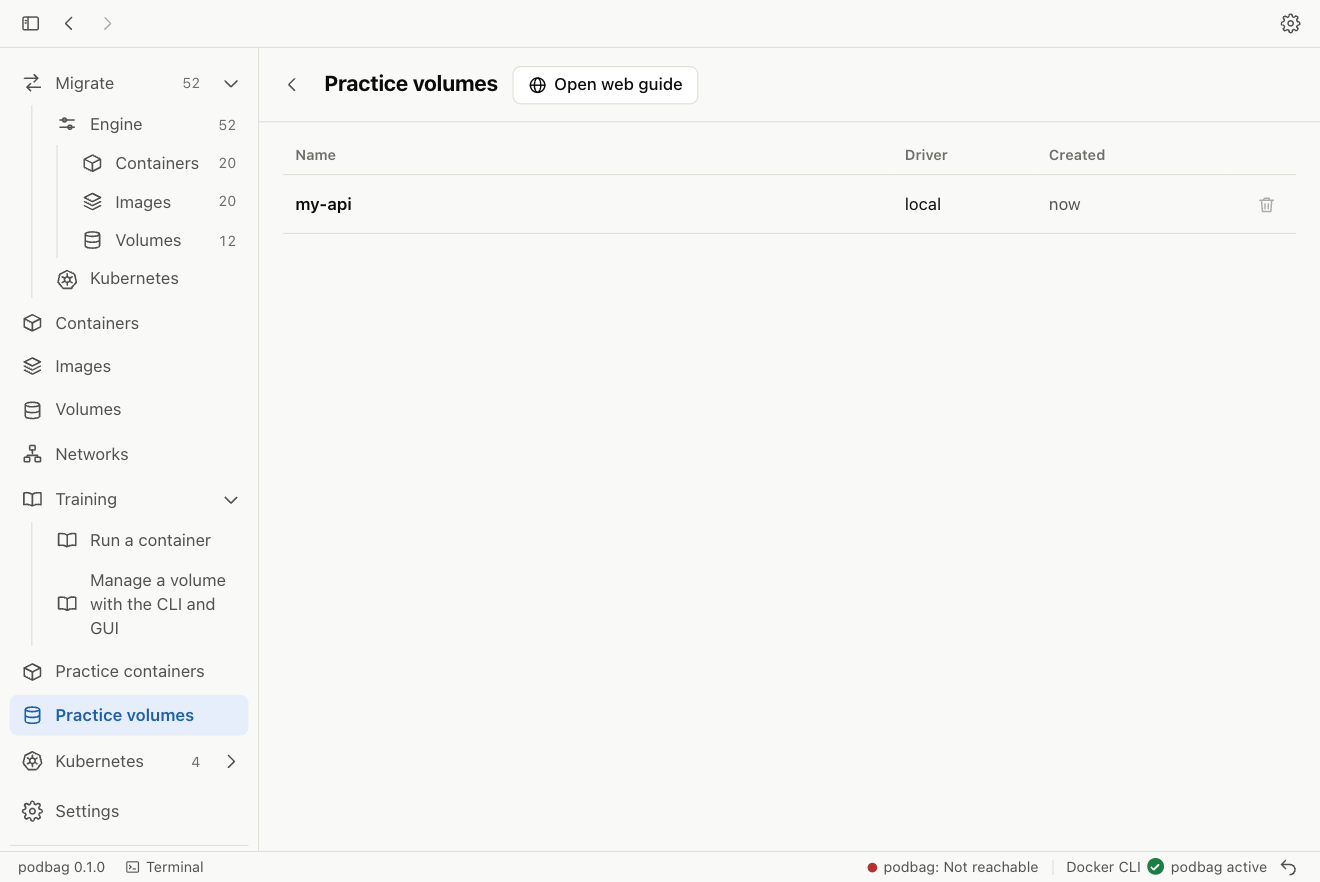
In Practice volumes, select my-api to inspect its name and storage path.
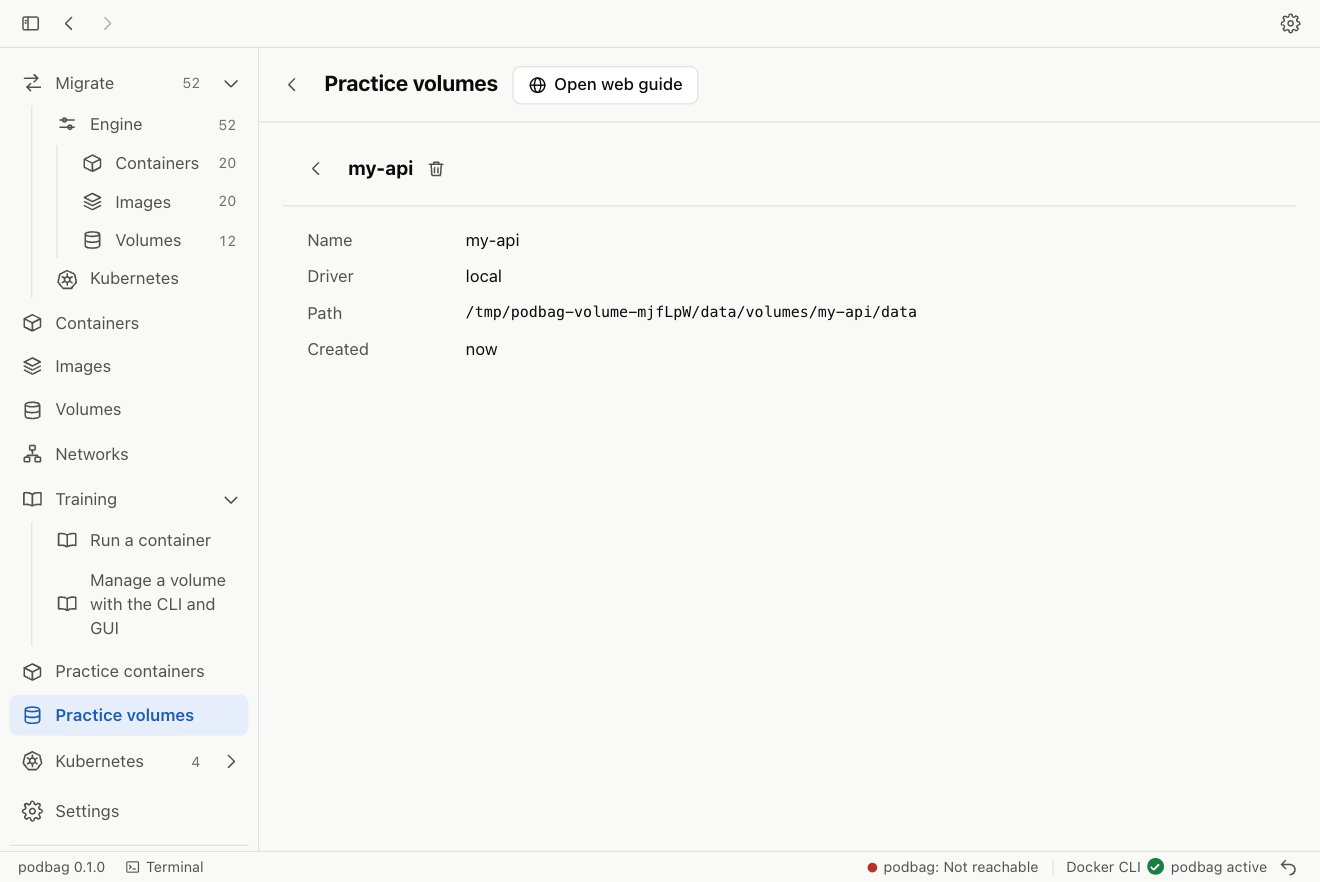
Delete it in the GUI
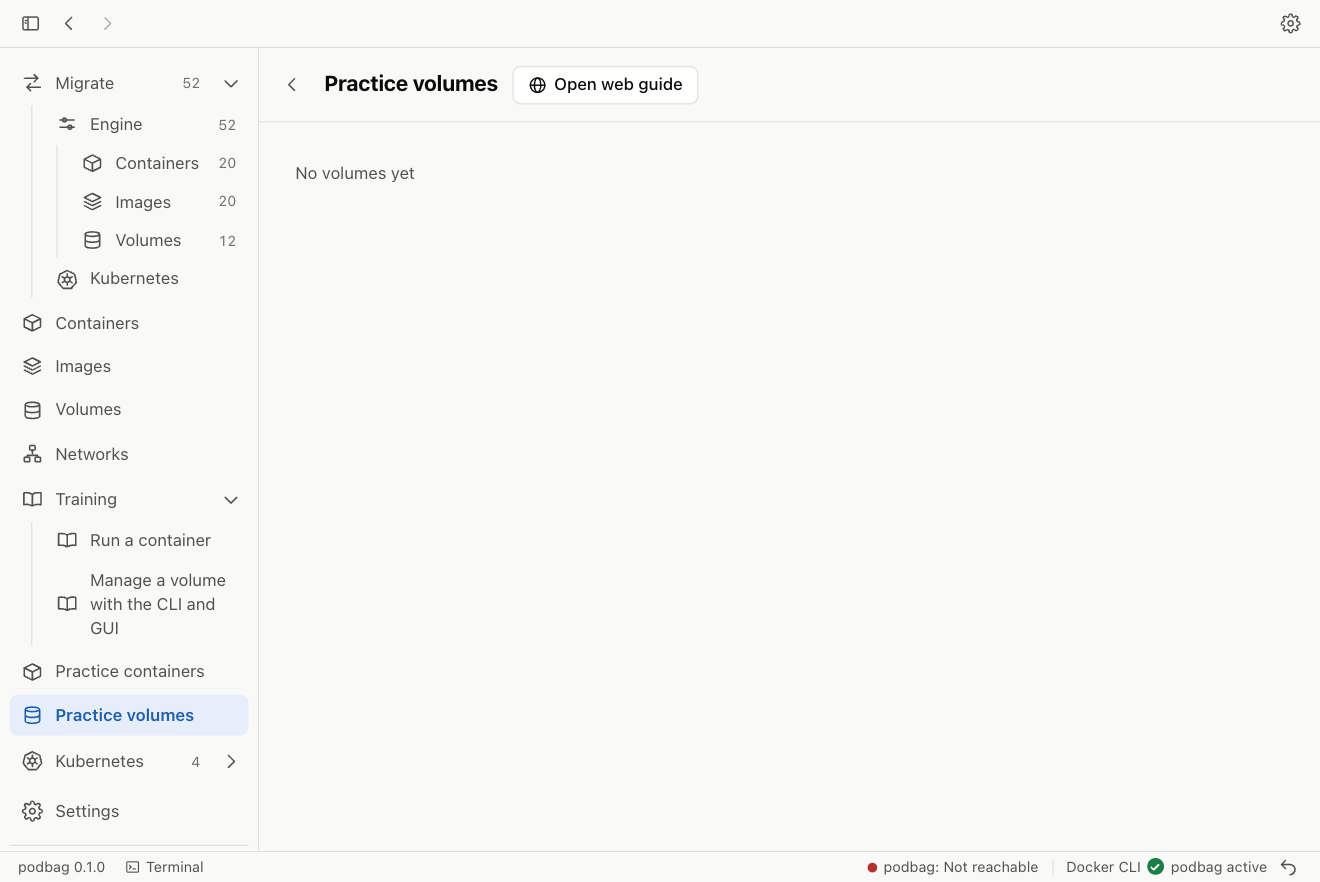
Select Remove for my-api. Check the name in the dialog and confirm.
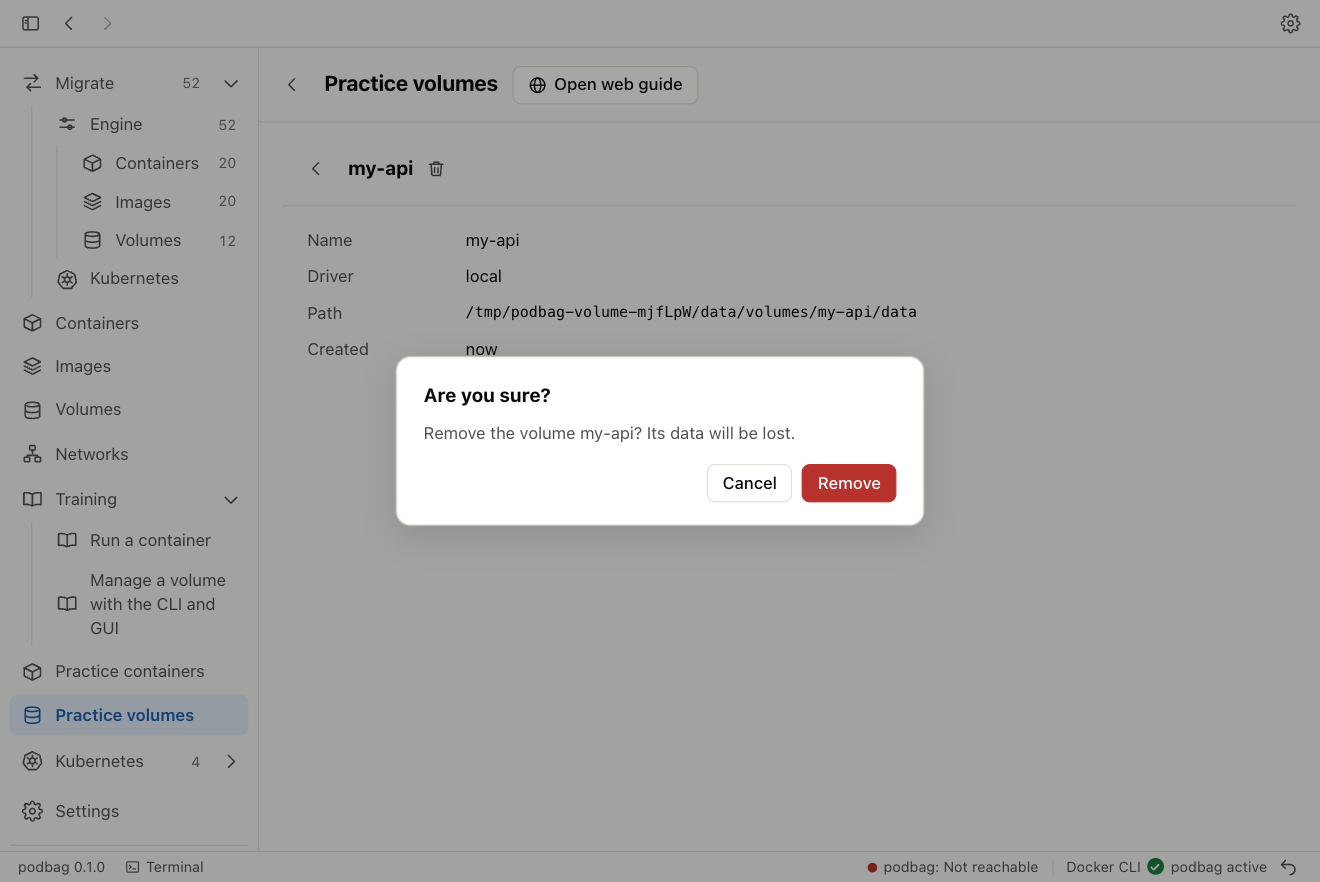
After deletion the list is empty. Return to the same practice shell.
Verify removal in the CLI
List the volumes again in the practice shell.
podbag volume ls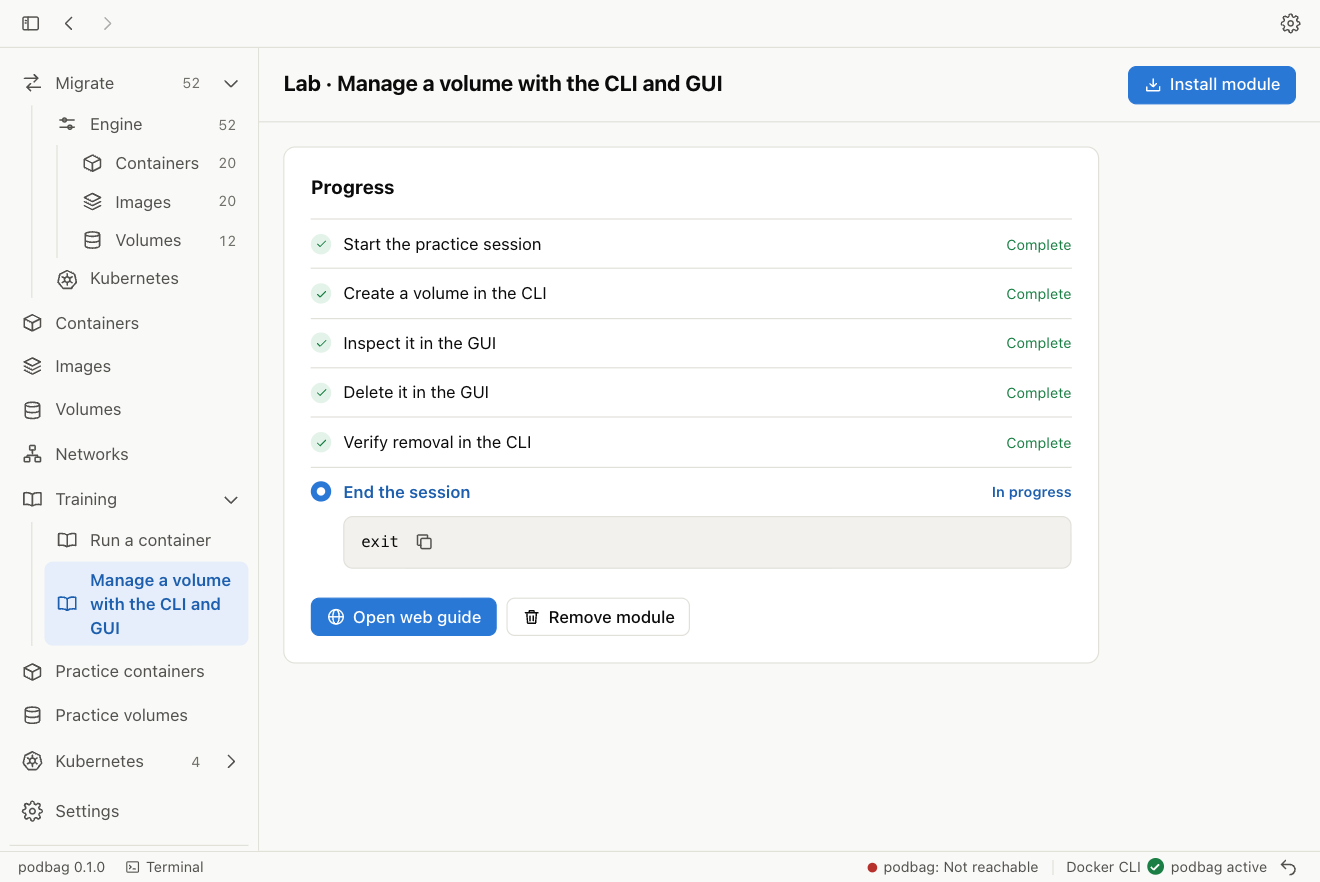
End the session
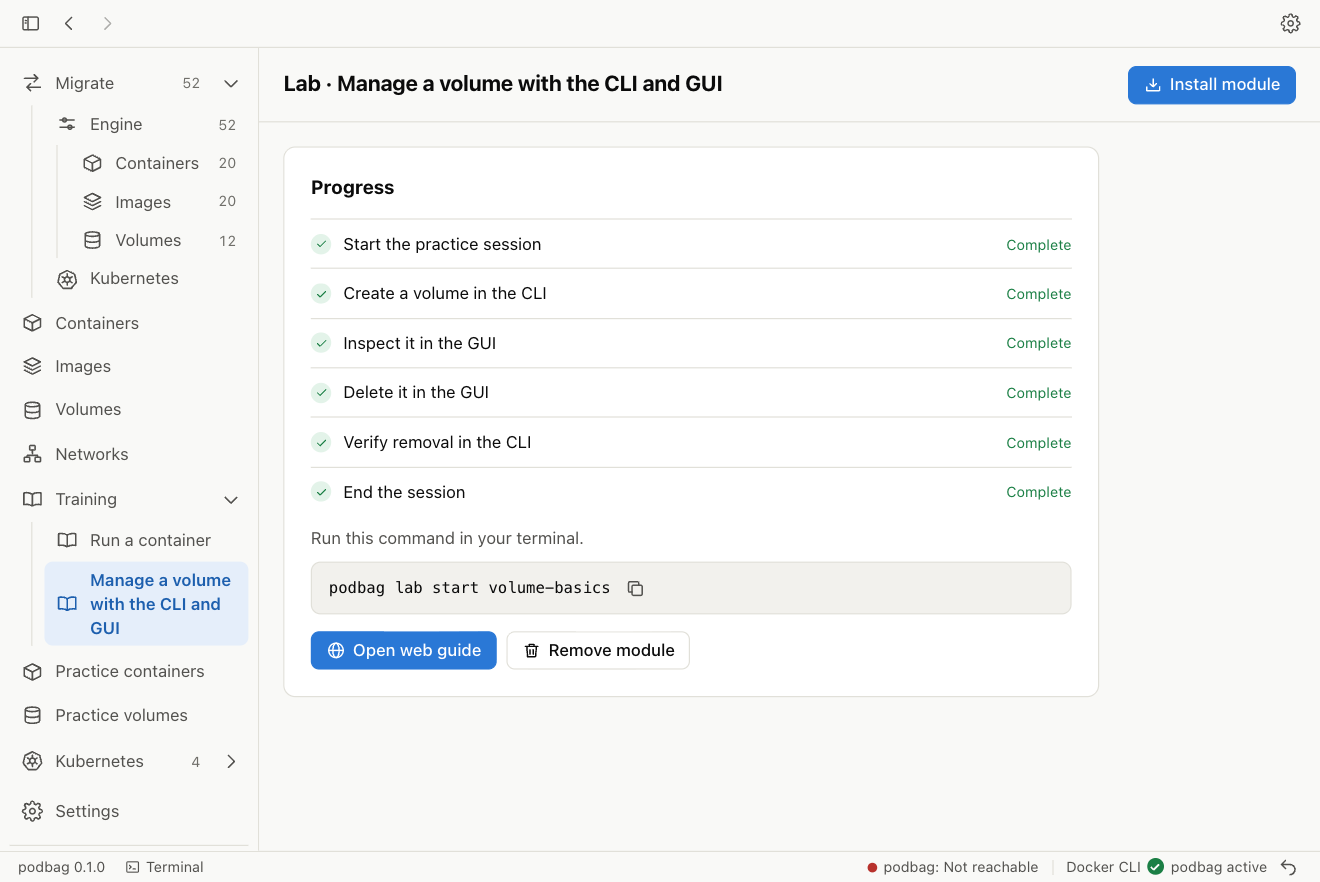
When the shell reports Verified, type exit to clean up the temporary store. Training marks the module complete.
exit
Uninstall the module
Run this command outside the practice shell to remove the module and its completion record. You can reinstall the downloaded file.
podbag lab remove volume-basics